Conversations Area - Managing Tasks in ConvyAI Agent Desktop
Overview
The Conversations Area is the main working panel of the Agent Desktop. This is where incoming tasks appear, where you communicate with customers, and where you access all the tools needed to manage a conversation.
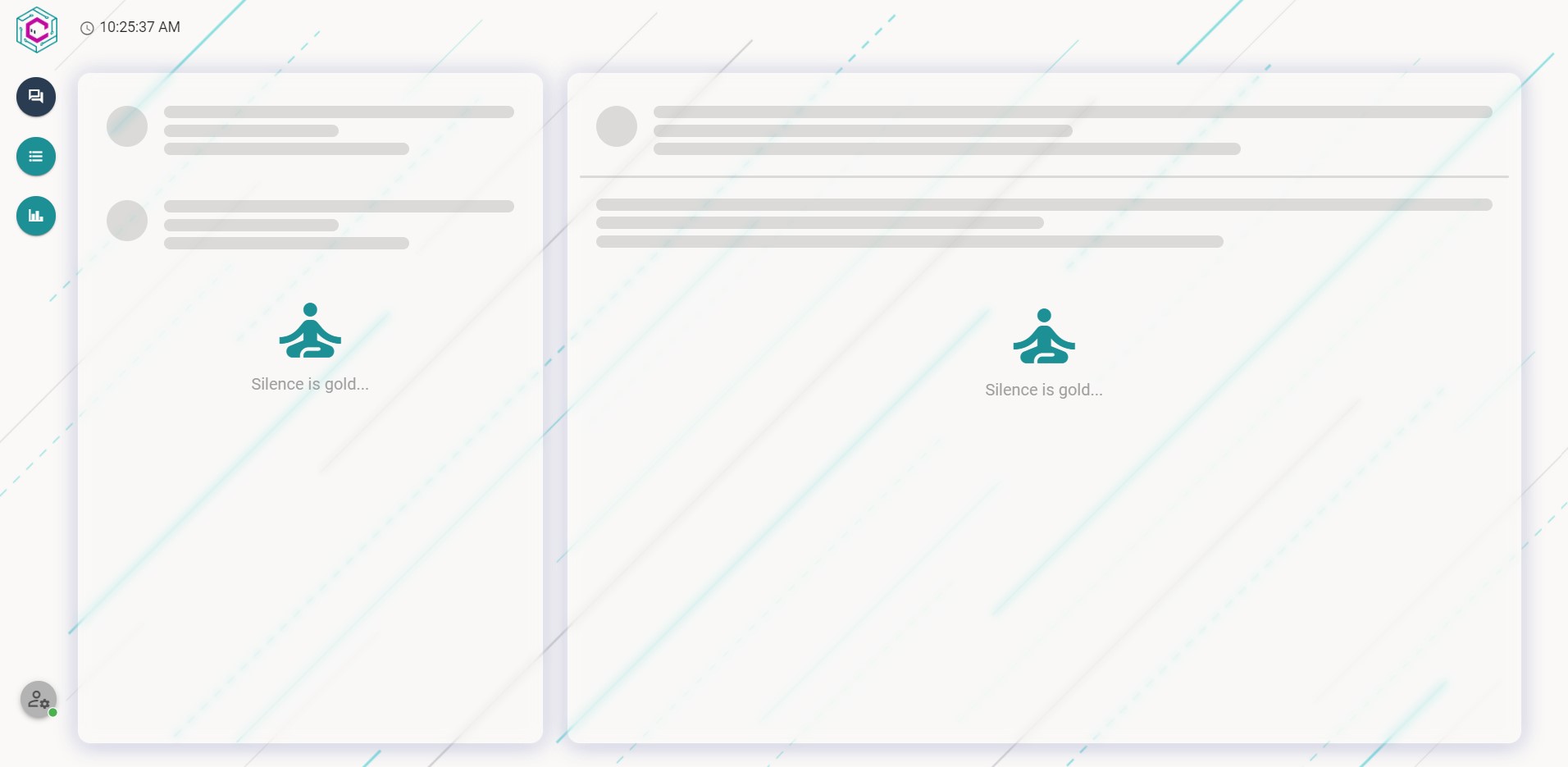
Agent status at login
When you log in, the system automatically sets your status to Not Ready. This means you will not receive new tasks until you manually switch to Ready. Because of this, the task list is empty immediately after login.
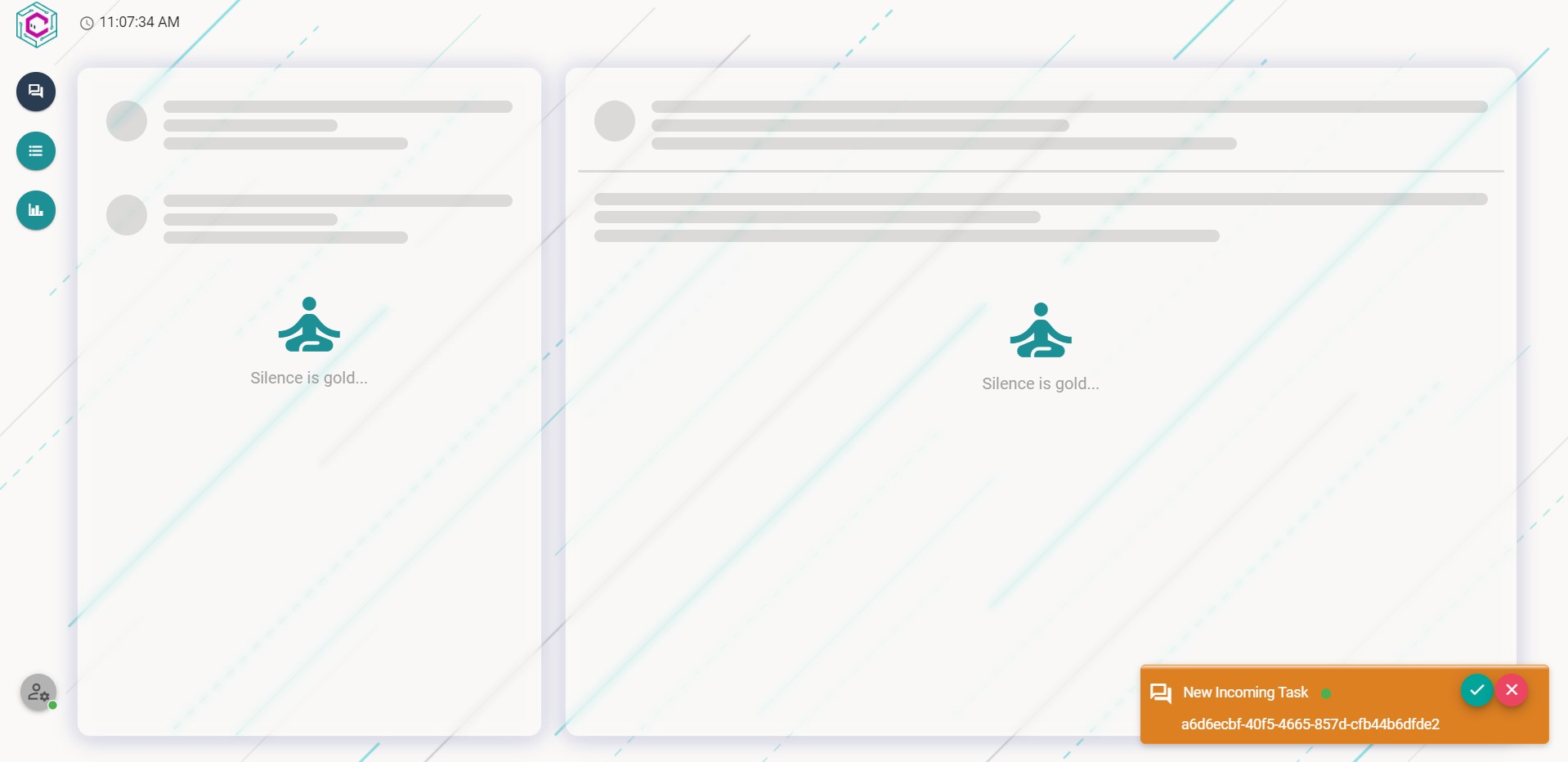
How tasks are assigned
When a customer requests to speak with an agent, the system dispatches the task to the first available agent. Depending on how your queue is configured, task acceptance can work in two ways:
- Automatic - the task is assigned to you directly without any action required.
- Manual - you receive an alert and must accept or decline the task within a set time window.
If you are using manual acceptance, an alert appears showing the conversation ID and its priority level.
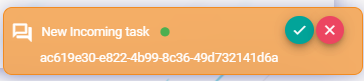
Click the green button to accept the task, or the red button to decline it. If you do not respond within the time limit, the task is reassigned to another available agent.
Layout after accepting a task
Once you accept a task, the Conversations Area is divided into four sections:
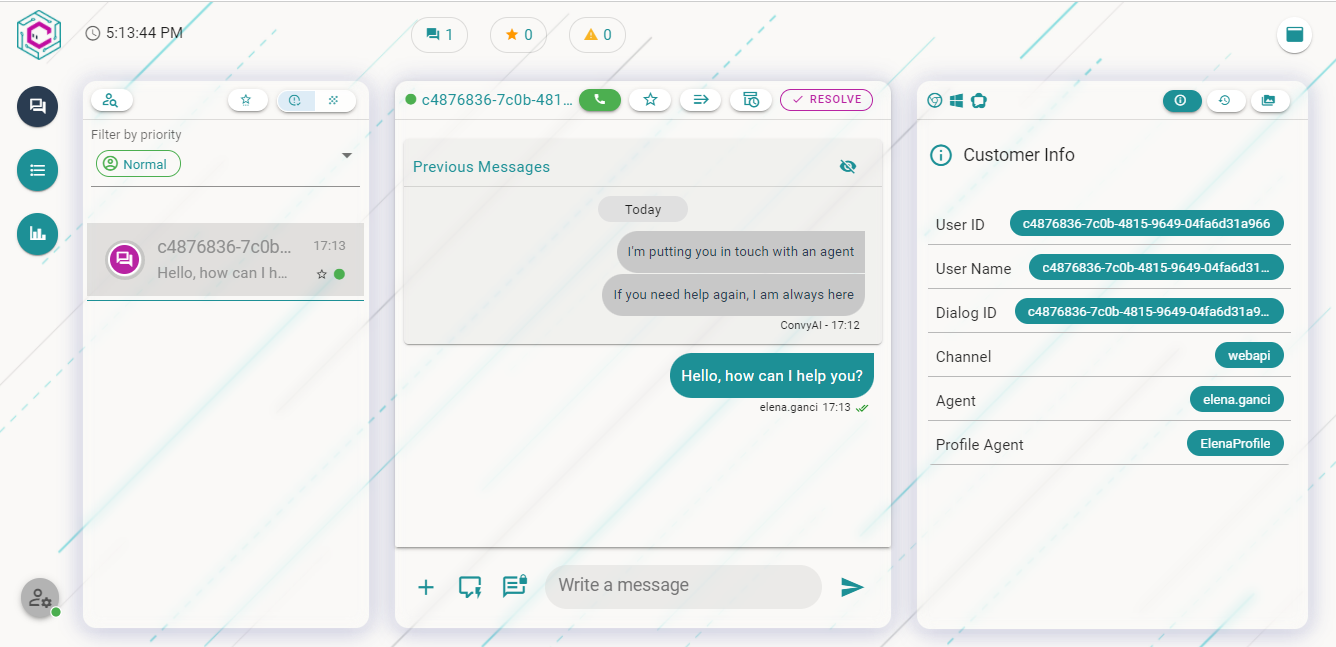
From left to right and top to bottom:
- System Bar - Quick status overview at the top of the panel
- Active Tasks List - All tasks currently assigned to you
- Chat Section - The conversation with the current customer
- Customer Details - Customer info, contact result, history, and media