Wallboard - Real-time KPI Dashboard in ConvyAI Agent Desktop
Overview
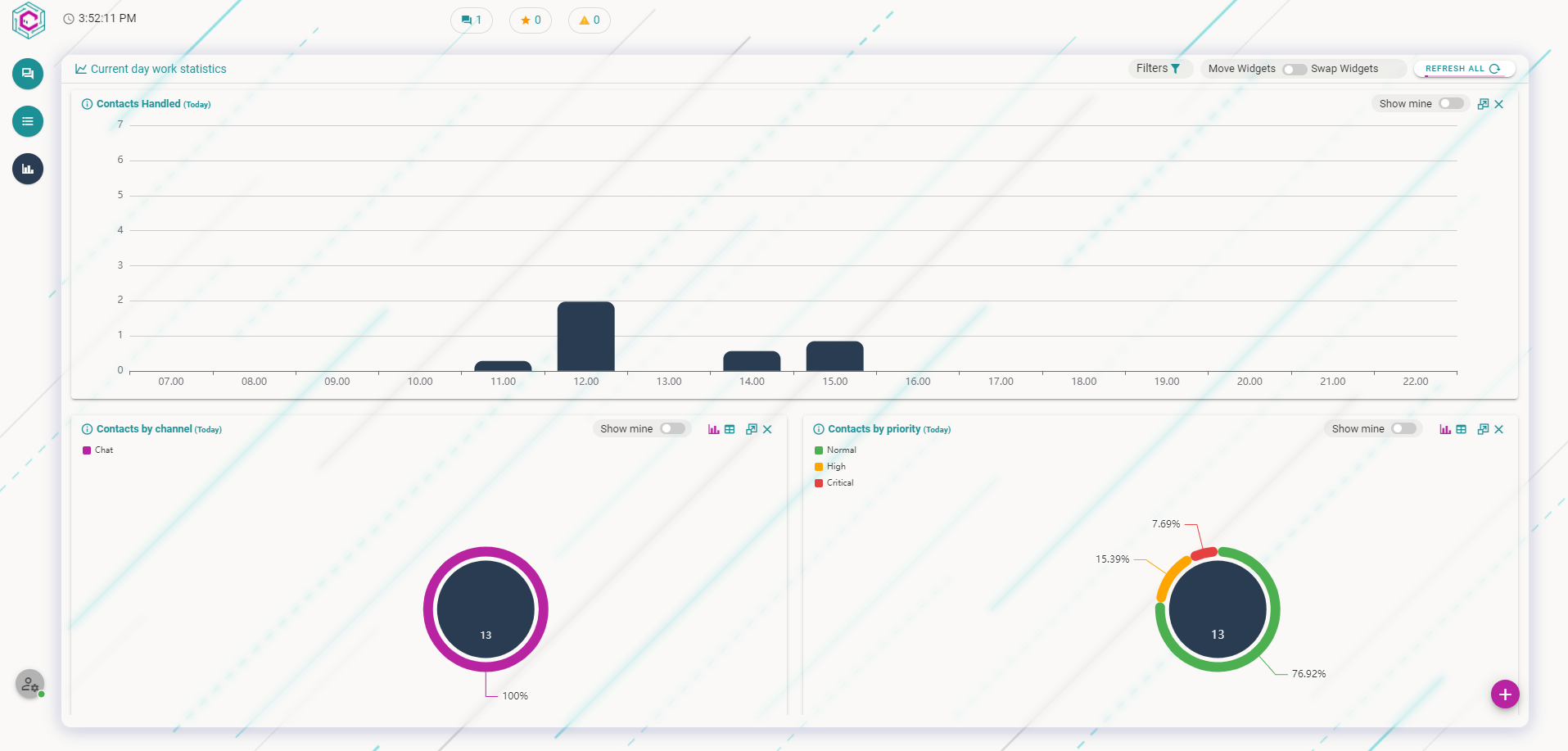
The Wallboard is a real-time dashboard showing key performance indicators (KPIs) for your contact center queues. Each KPI is displayed as a widget that can show data in chart or table format.
The data visible depends on your permission level. A basic ViewWallboard permission gives access to four default widgets:
- Contacts Handled
- Contacts by Channel
- Contacts by Priority
- Average Response Time
Enabling edit mode
To add or remove widgets, your account must have the Edit Wallboard permission enabled in ConvyAI Admin.

When enabled, an Edit Menu button appears in the bottom-right corner of the page. Click it to open the edit menu.
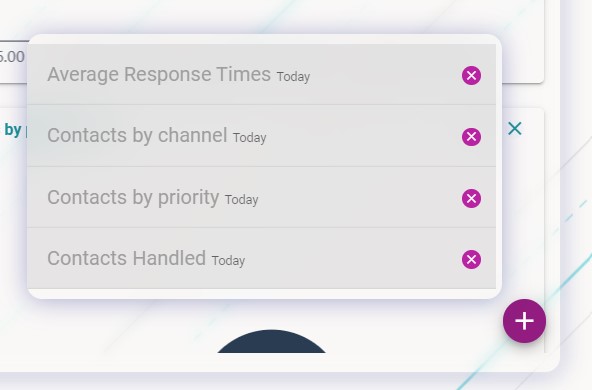
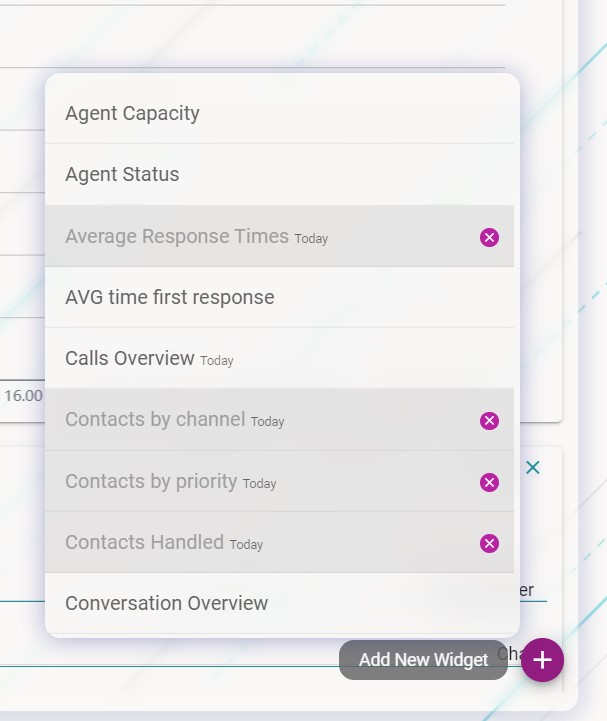
The Edit Menu lets you add new widgets to the wallboard or remove existing ones. The remove button on individual widgets is only visible when edit mode is active.

Widget controls
Each widget has a control area on its right side. The available controls vary by widget and permission level, but the most common are:

| Control | Description |
|---|---|
| Info | Shows a short description of what the widget displays |
| Graphic | Switches the widget to chart/graphic view |
| Table | Switches the widget to table view |
| Resize | Resizes the widget |
| Remove | Removes the widget (visible only in edit mode) |
If the Access Profile Content permission is enabled for your account, some widgets show a Show Mine option, letting you toggle between your personal data and aggregated data for all agents with shared queues.
Wallboard controls
The wallboard control area lets you manage global options and filters.

Three columns view

Click to switch between the default two-column layout and a wider three-column layout.
Filters
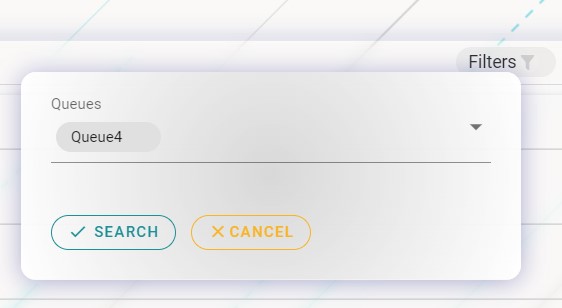
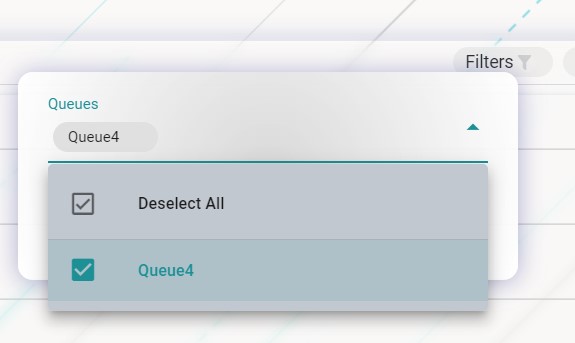
Use the filter to limit widget data to specific queues. By default, all visible queues are included.
Move or Swap

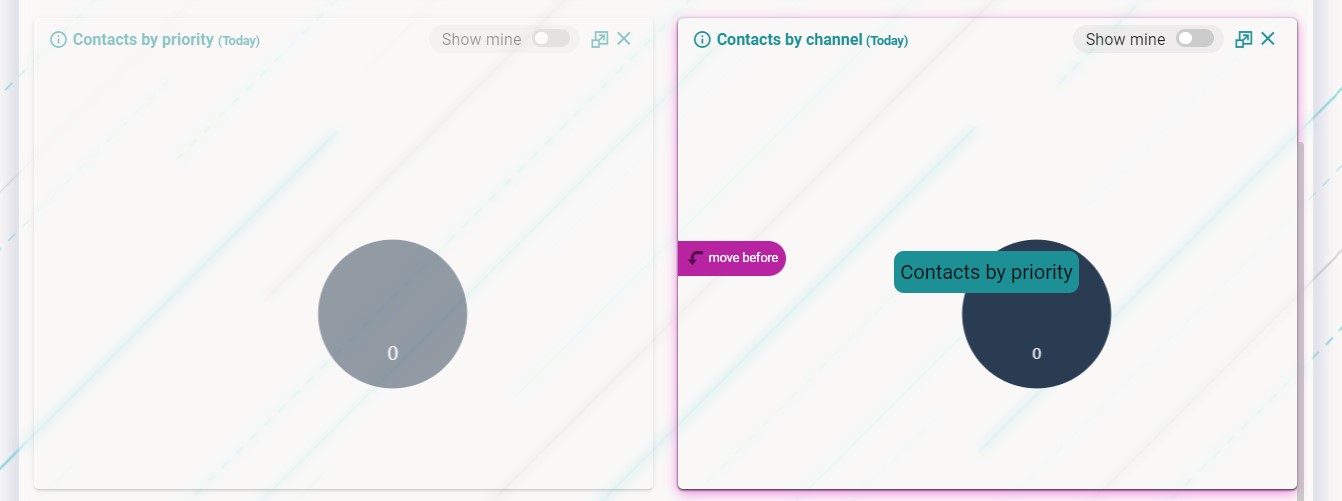
Enable this option to rearrange widgets by drag and drop. Two behaviors are available:
- Move - the dragged widget is inserted before or after the target widget.
- Swap - the dragged widget and the target widget exchange positions.
Refresh All

Widget data automatically refreshes every minute. Click Refresh All to force an immediate reload of all widget data.