Outbound - Sending Proactive Messages in ConvyAI Agent Desktop
Overview
The Outbound panel lets you send proactive messages to customers via channels such as WhatsApp and Telegram, without waiting for them to contact you first. This feature is available only if outbound bots and connectors have been configured by your administrator.
Prerequisites
The Outbound button is visible in the Navigation Menu only if outbound bots and connectors are configured for your account.
Opening the Outbound panel

Click the Outbound button in the left navigation menu to open the panel. A list of configured outbound bots appears.
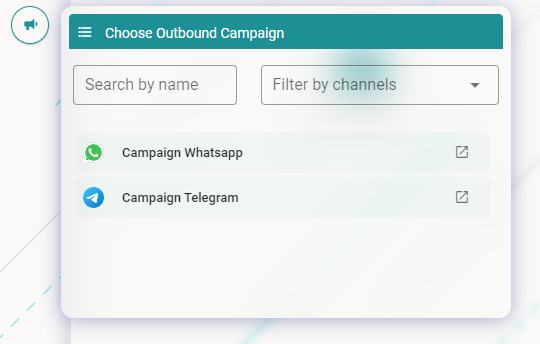
Use the search function or apply filters to find the bot you need.
Sending a WhatsApp message
Click on the WhatsApp bot to open the WhatsApp outbound window.
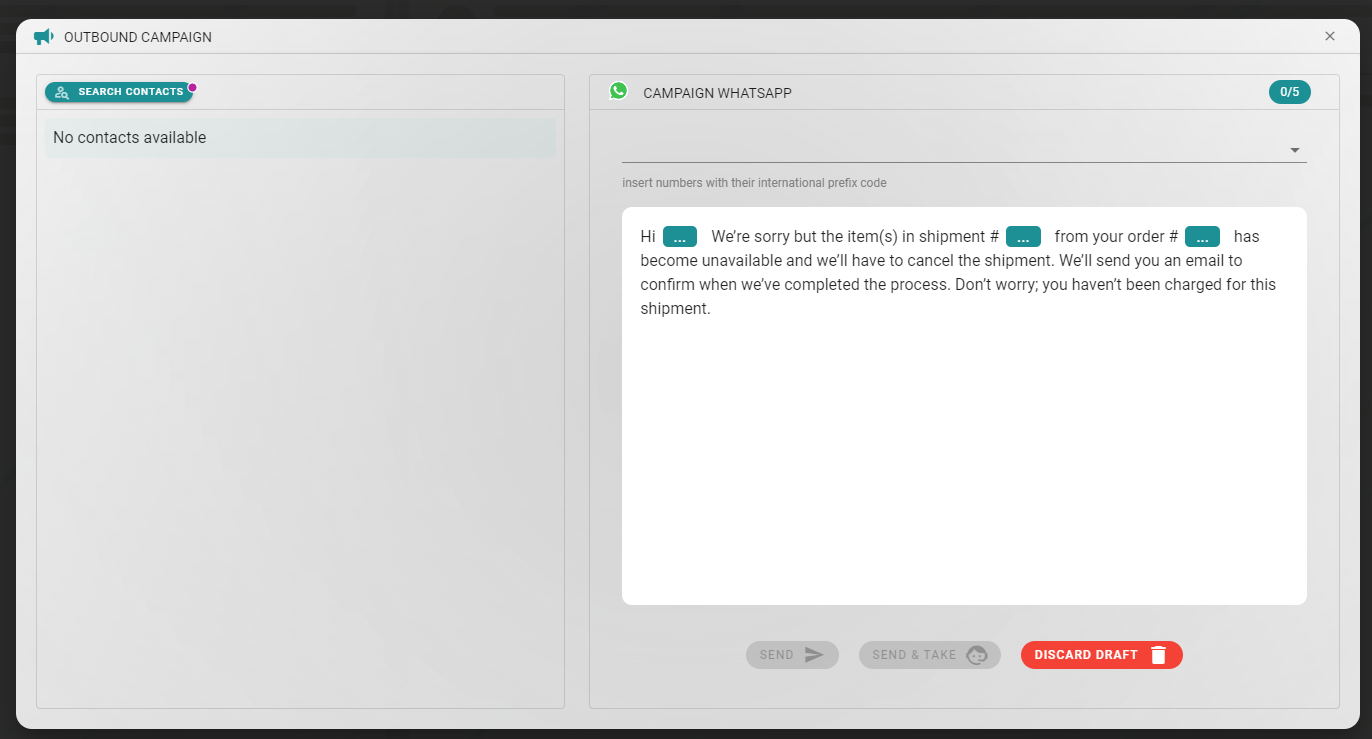
The window has two areas:
- Left - a list of selectable contacts. You can select up to 5 contacts, or type a contact's phone number or WhatsApp BSUID directly.
- Right - the message body, pre-filled based on the configured WhatsApp template. Fill in any required fields.
Once the message is ready, you have two ways to send it:
| Option | Behavior |
|---|---|
| Send | Sends the message and waits for the customer to reply before the handover conversation starts. The bot follows the configured flow on the "wait for response" path. |
| Send & Take | Sends the message and immediately initiates the handover, without waiting for a customer reply. The bot follows the configured "Take" path. |
To discard the message, click the Discard draft button.
Saving a draft
If you close the panel using the X button (top-right), the draft is saved automatically. A dot indicator appears on the Outbound button to signal that a draft is waiting.

Sending a Telegram message
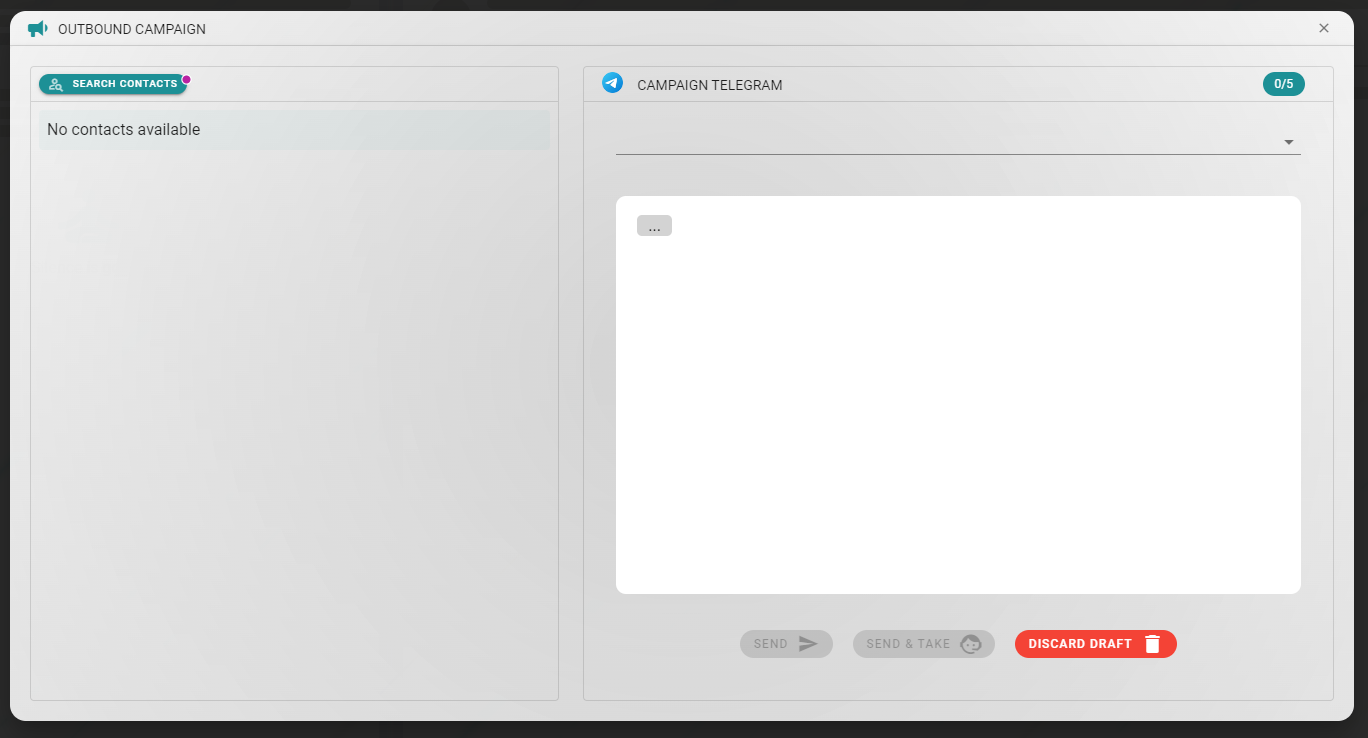
The Telegram outbound flow is similar to WhatsApp, with two differences:
- You cannot type a contact number manually - contacts are identified by their Telegram username, not a phone number.
- The message body is free-form - you can write any text, unlike the fixed template used for WhatsApp.
Monitoring outbound conversations
All outbound conversations appear in the Reporting Area. You can interact with them even before the customer has replied.