Reporting Area - Search and Review Conversations in ConvyAI Agent Desktop
Overview
The Reporting Area lets you search and review all conversations handled by the contact center. The data and actions available to you depend on your permission level:
- Agent - can only see their own conversations.
- Super Agent / Supervisor - can see all conversations in their queues, pick up live conversations, and access real-time monitoring.
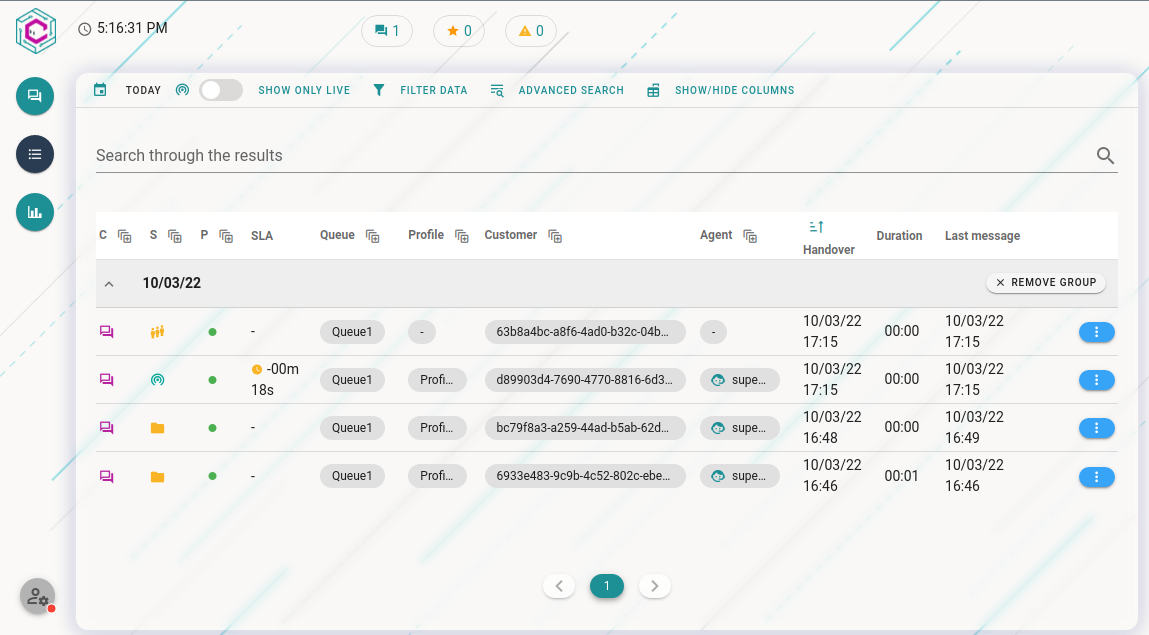
Control menu
At the top of the Reporting Area, the control menu gives you tools to search, filter, and customize the view.

Search by time range
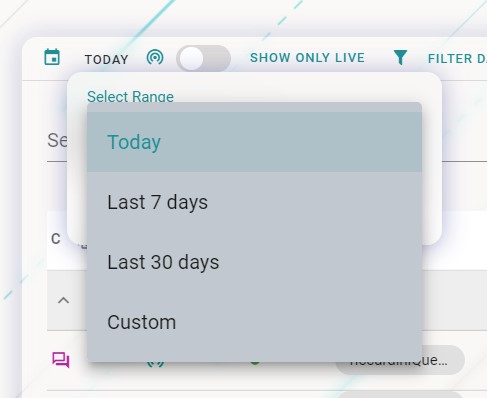
Use the time range selector to set the period you want to search. Available options:
- Today
- Last 7 days
- Last 30 days
- Custom - set your own start and end date (maximum range: 3 months)
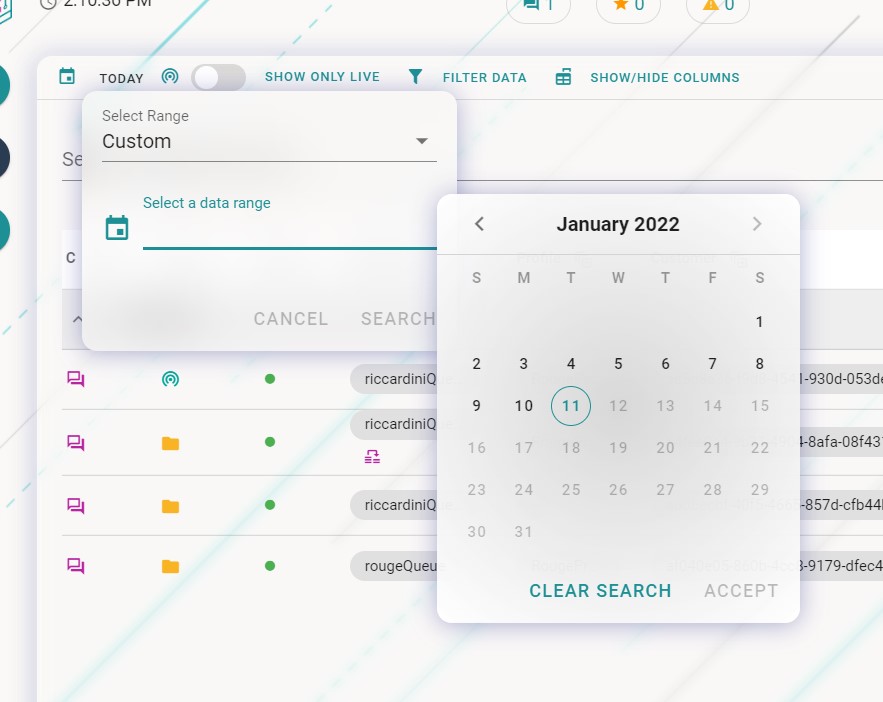
The time range refers to when the task was first accepted by an agent.
Show Only Live Conversations

Toggle this switch to filter the list to only show conversations that are currently active. Super Agents and Supervisors see all live conversations in their queues; Agents see only their own.
Filter Data
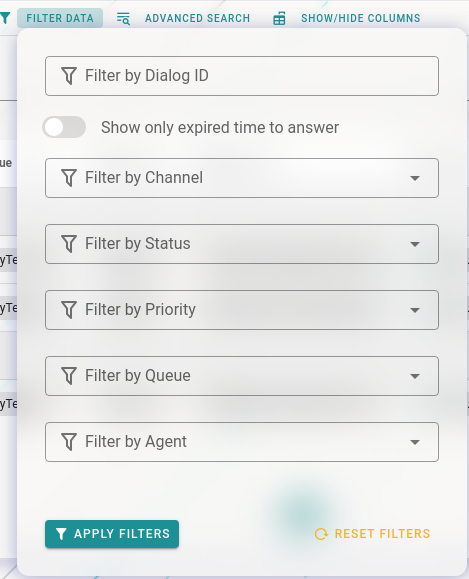
Click Filter Data to apply filters to the conversation list. You can filter by:
- Channel (chat, WhatsApp, Telegram, email, etc.)
- Status (live, managed, queued, bot)
- Priority
- Queue
- Agent
- Dialog ID - search for a specific conversation by its unique identifier
Advanced Search
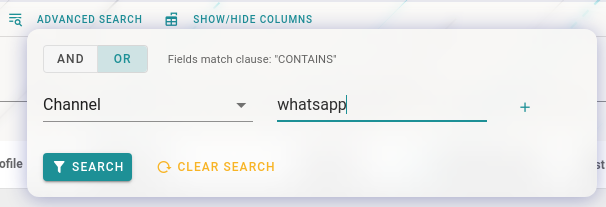
Use Advanced Search to create complex filters based on handover parameters - data passed when a customer was transferred to an agent.
Show/Hide Table Columns
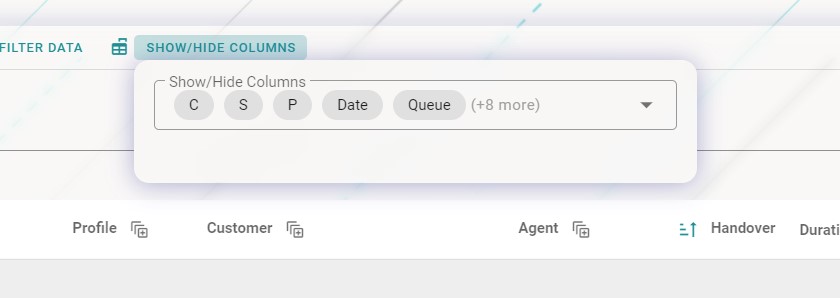
Click this button to choose which columns to display or hide in the conversation table.
Report table
The report table shows conversations grouped by day. Each row displays:
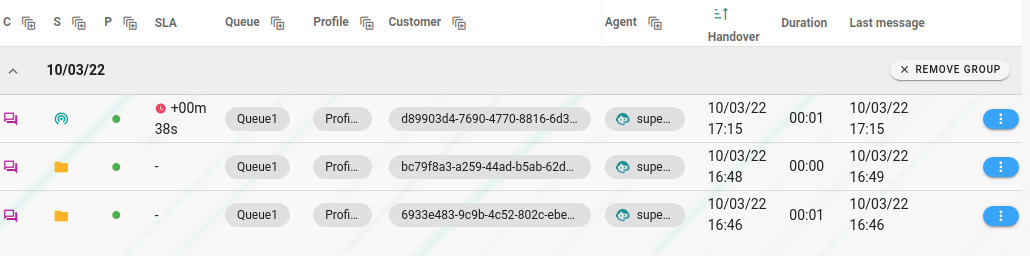

| Column | Description |
|---|---|
| Channel | The channel used (chat, WhatsApp, Telegram, etc.) |
| Status | live, managed, queued, or bot |
| Priority | Task priority level |
| SLA timer | Whether the SLA was met |
| Queue | The queue the task was assigned to |
| Transfer detail | Transfer history, if any |
| Profile | Agent profile |
| Customer ID | The customer's identifier |
| Agent username / Bot name | Who handled the conversation |
| Handover | Handover details |
| Last activity | Timestamp of the last action |
| Duration | Total conversation duration |
| Last message | Preview of the last message |
| Actions | Available action buttons |
Actions Menu
The actions available for each row depend on your permission level.
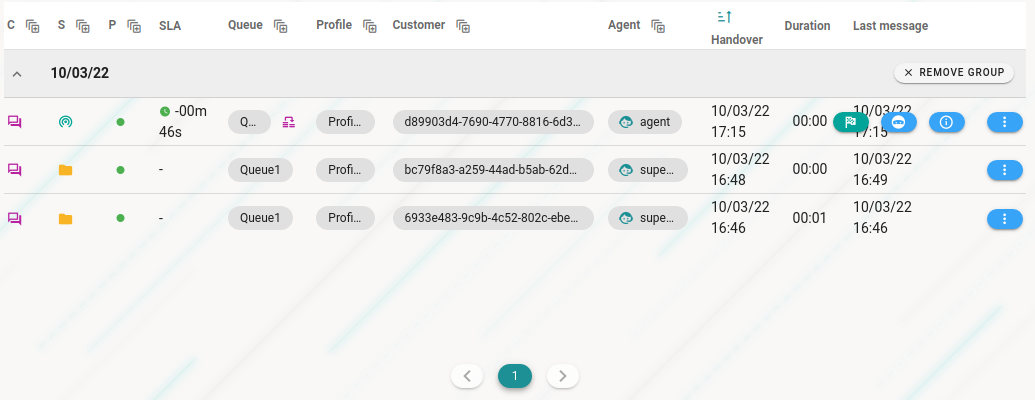
Pickup

Available to Super Agents and Supervisors. Takes control of a live or parked conversation, reassigning it to you. The task is removed from the original agent's list and added to yours.
When picking up a conversation, your current status is ignored - you can pick up a conversation even when your status is Not Ready.
Resume

Reopens a conversation that you previously parked. The task returns to your active task list.
Real-time Reading

Opens a read-only view of the conversation showing the full message history. If the conversation is live, new messages appear in real time as they are exchanged. If enabled, you can also write a private note to the agent handling the conversation.
Open Detail
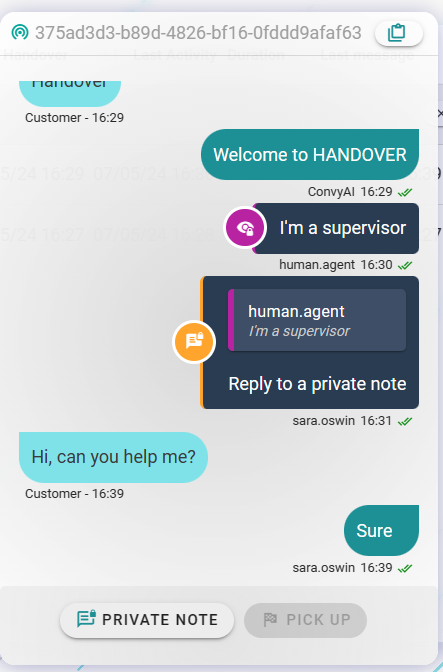

Opens the Detail View for the selected task. If the task is live, the detail view updates in real time.
Task Detail view
The Detail View shows the complete information for a specific conversation:
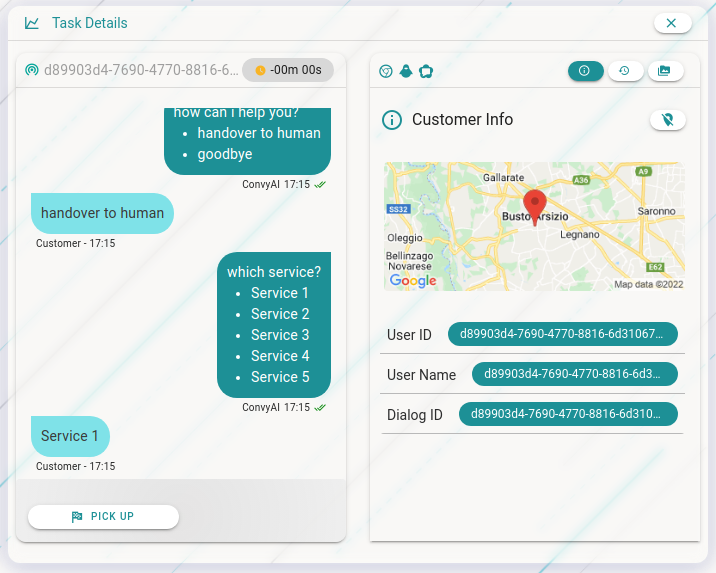
- Full chat history
- Customer handover parameters
- Geolocation (if available)
- Contact results
- Agent surveys
- Customer history
- Shared media files

If enabled for your account, the Copy to Clipboard button lets you copy the full conversation transcript, including attachment links.