Navigation Menu - Agent Desktop Sidebar in ConvyAI
Overview
After logging in, the navigation menu is always visible on the left side of the screen. It lets you move between the main sections of the application and access your settings at any time.
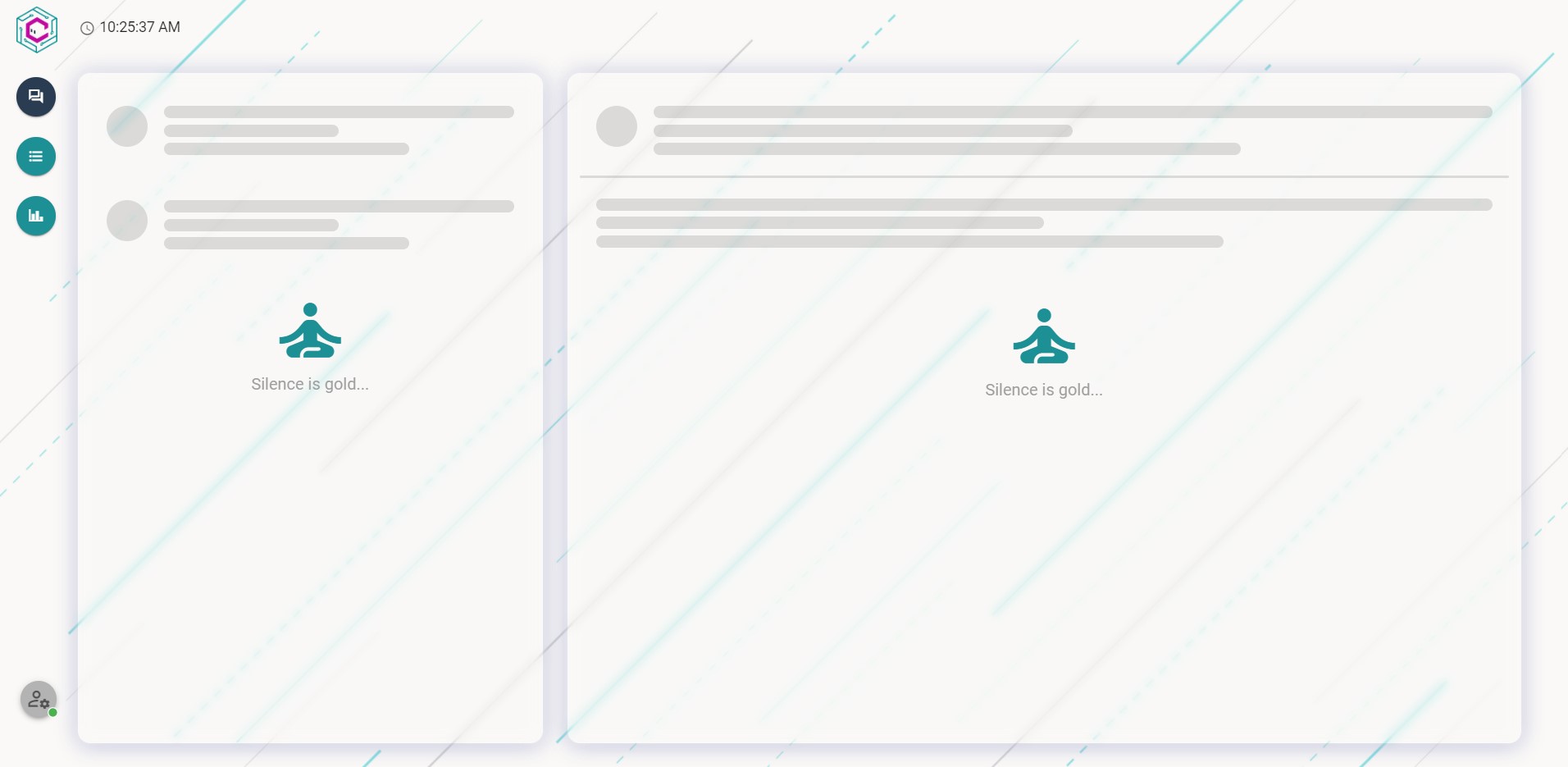
Navigation buttons
Conversations Area

This button opens the Conversations Area, where you manage all your active tasks (chat, email, and other channels). This is the main working area of the Agent Desktop.
See Conversations Area for details.
Reporting Area

This button opens the Reporting Area, where you can search and review past and live conversations, apply filters, and access conversation details.
See Reporting Area for details.
Wallboard

This button opens the Wallboard, a dashboard with real-time widgets showing KPIs for your queues (contacts handled, agent status, response times, and more).
See Wallboard for details.
Agent Settings

This button opens your Agent Profile Settings, where you can change your status (Ready / Not Ready), switch the application theme, change language, adjust notification volume, and log out.
See Agent Profile Settings for details.
Outbound

This button is visible only if outbound bots and connectors are configured for your account. It opens the Outbound panel, where you can send proactive messages to customers via WhatsApp or Telegram.
See Outbound for details.