Wallboard Widgets - KPI Reference for ConvyAI Agent Desktop
Overview
Each widget in the Wallboard displays a specific KPI about your contact center. All widgets can be shown in chart or table format using the controls on the right side. Data refreshes automatically every minute or manually via the Refresh All button.
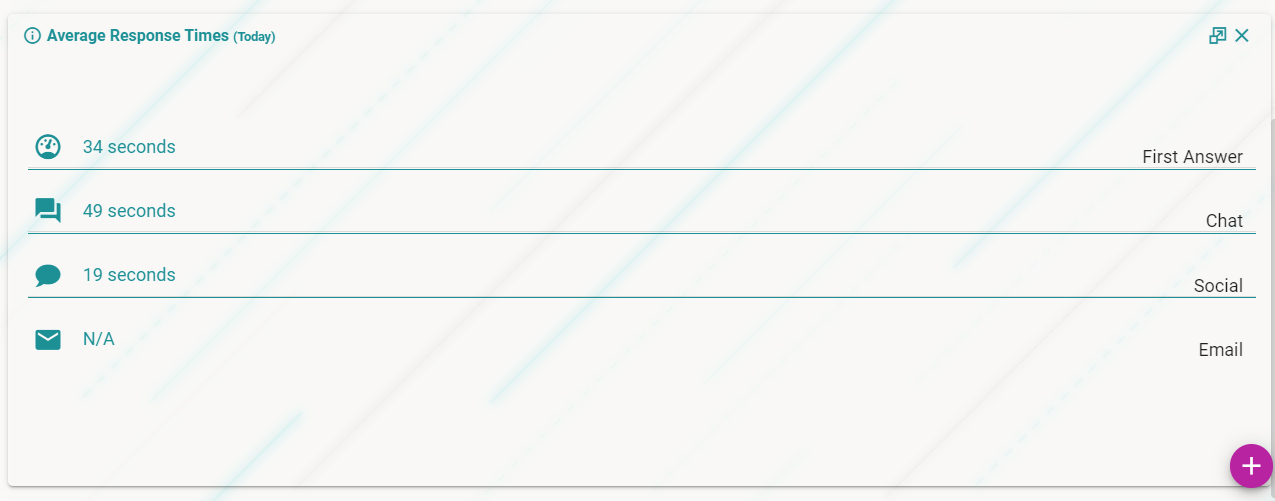
Average Response Time
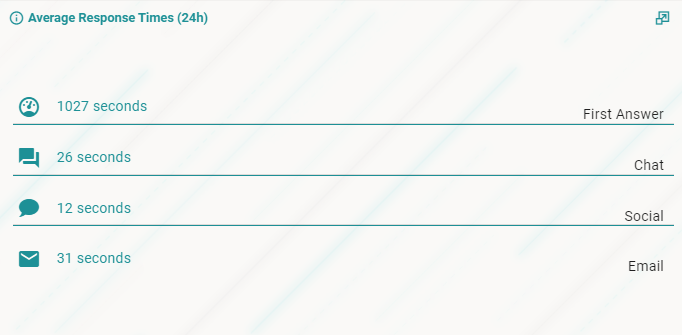
Shows the average time agents took to respond to customers for the current day, broken down by channel: chat, social (WhatsApp, Telegram, Facebook Messenger, etc.), and email.
Contacts by Channels
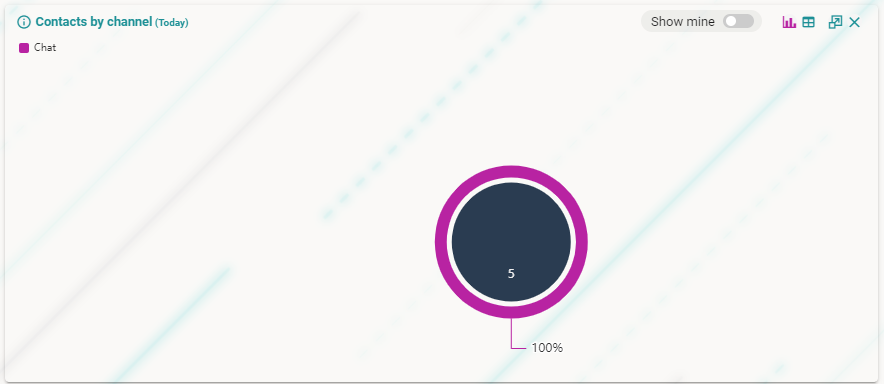
Shows the total number of contacts handled today, split by channel.
Contacts by Priority
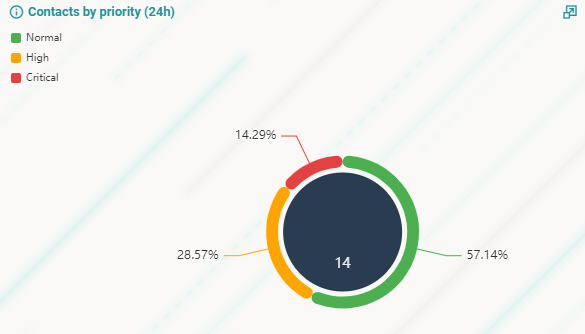
Shows the contacts handled today, grouped by priority level. The center of the widget shows the total number of contacts; the outer ring shows the percentage breakdown by priority.
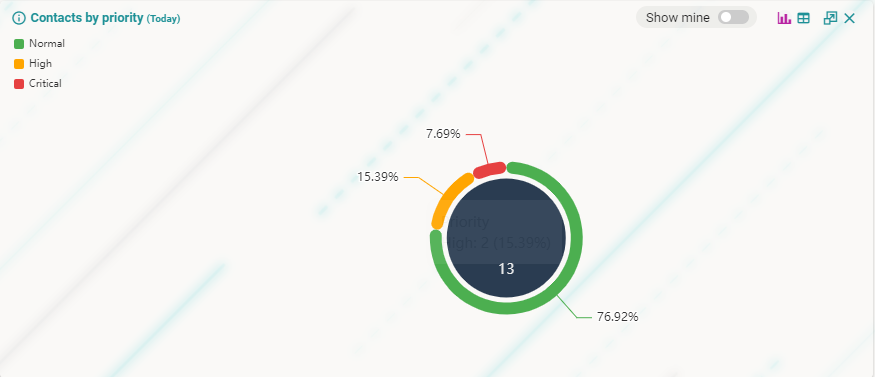
Available priority levels: Normal, High, and Critical. If a priority level has no contacts for the day, it does not appear in the chart.
Contacts Handled
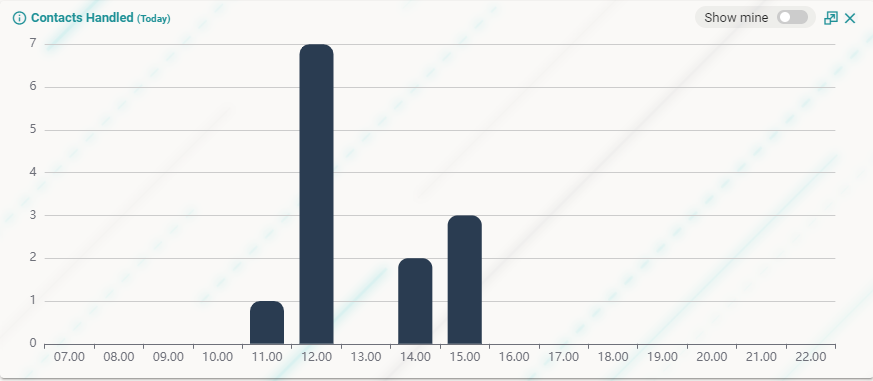
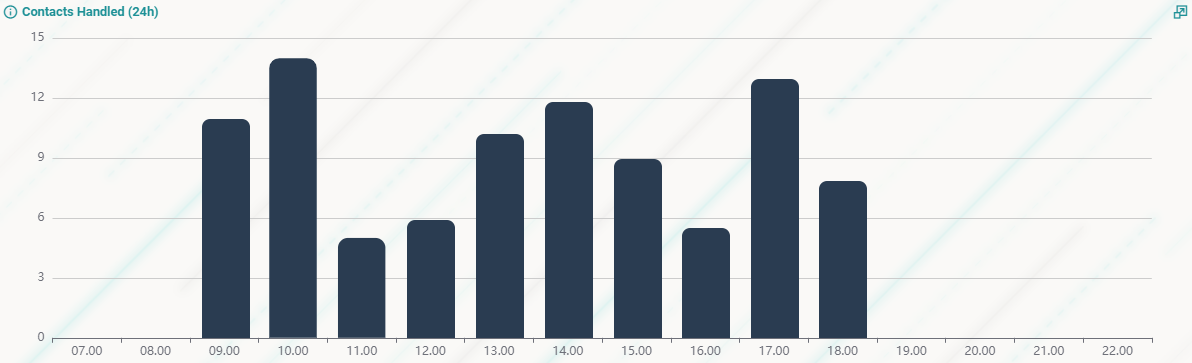
Shows the number of tasks handled per hour for the current day. Depending on your permissions, you may see only your own contacts or all contacts handled by agents in your profile.
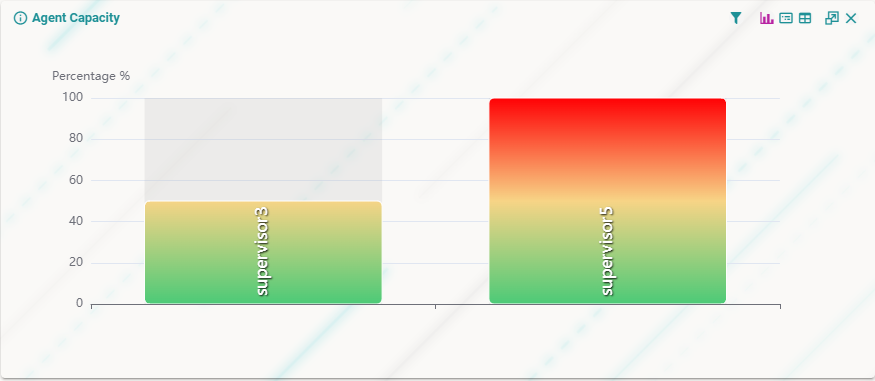
Agent Capacity
Shows the current workload of each agent as a percentage of their total capacity. Helps supervisors understand who has bandwidth and who is at or near full load.
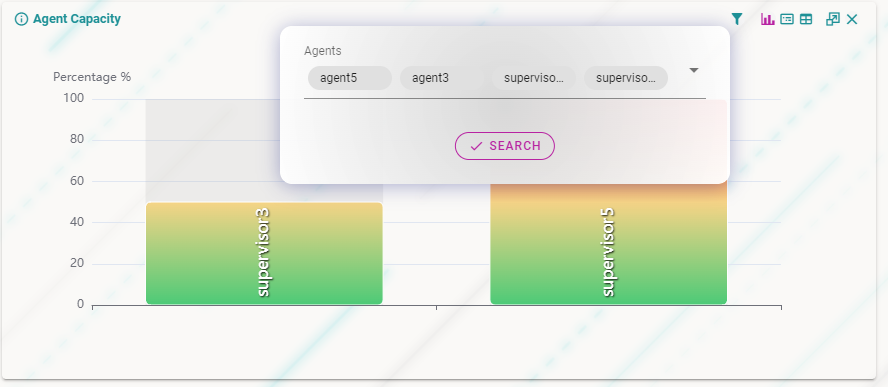
Click the filter icon in the widget controls to filter by specific agents.
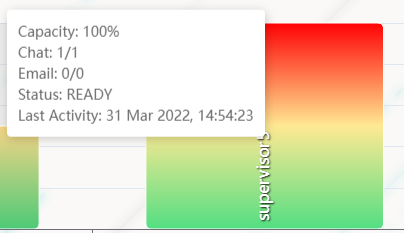
Hover over an agent's gauge to see a popup with more detail: number of active tasks, channel distribution (chat vs. email), and last activity timestamp.
Switching to card view

Click the view toggle in the widget controls to switch to the card view.
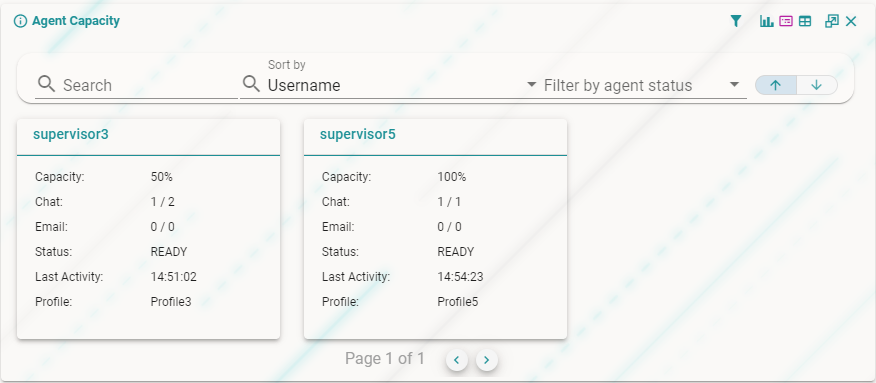
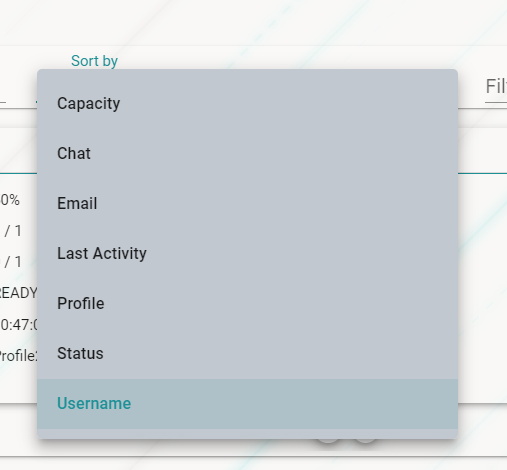
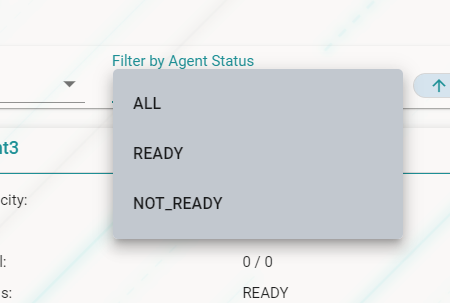
The card view allows you to:
- Filter agents by status
- Sort by username
- Search for a specific agent
Agent Status
Shows the status of all agents across your visible queues. The outer ring represents individual queues; the inner pie chart shows the distribution of agent statuses within each queue.
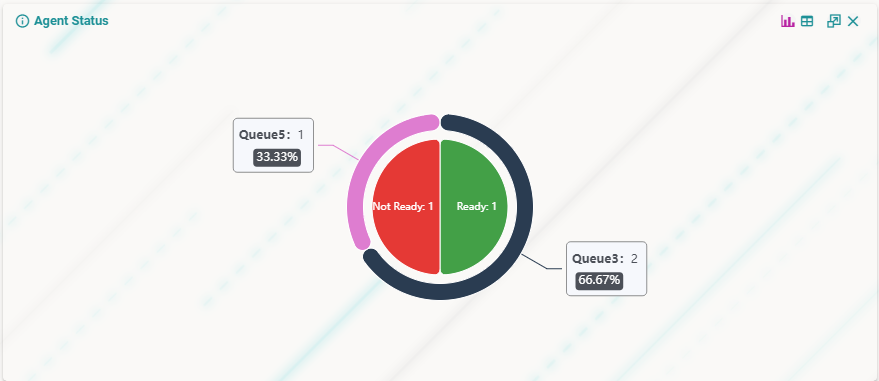
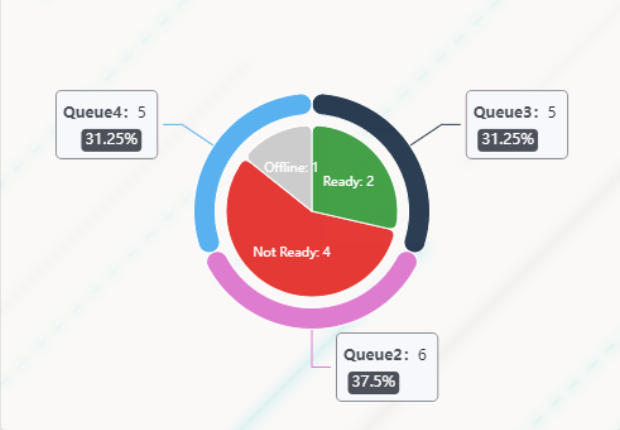
Hover over a specific queue segment to see the details for that queue. The percentage shown indicates how many agents in the queue are currently logged in.
In table view, an additional "Ready with capacity" column shows how many agents are in Ready status and can still accept new tasks.
Average Time of First Response
Shows the average time from when a customer's conversation lands in a queue to when an agent sends the first message, broken down by queue.
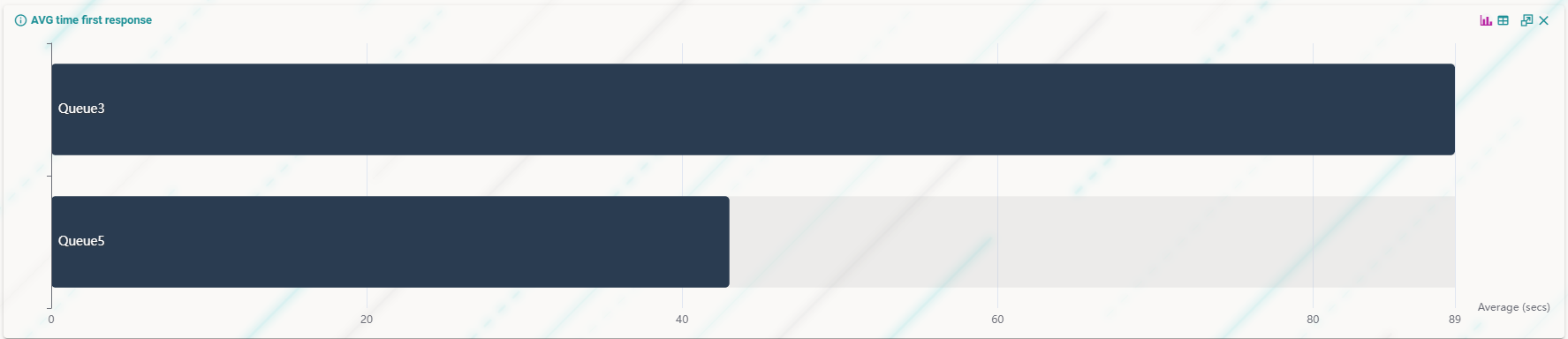
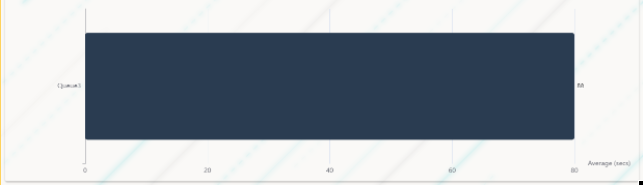
The value is expressed in seconds and calculated as: sum of first response times across all conversations in the queue ÷ total number of conversations handled in that queue.
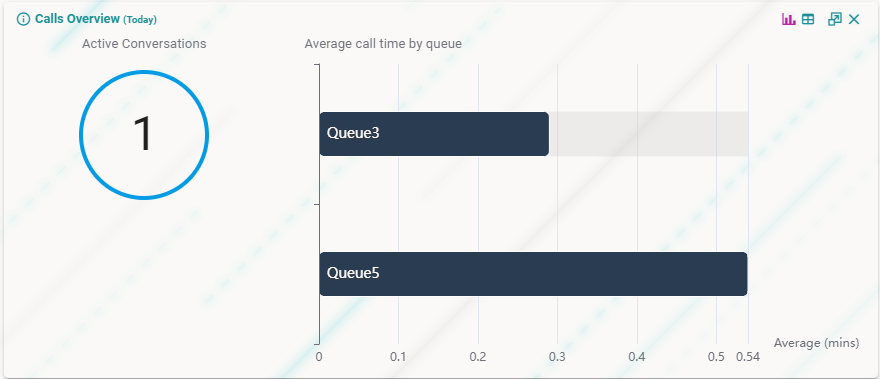
Calls Overview
Shows the number of audio/video calls currently active and the average call duration for each queue in your profile, for the current day.
Conversation Overview
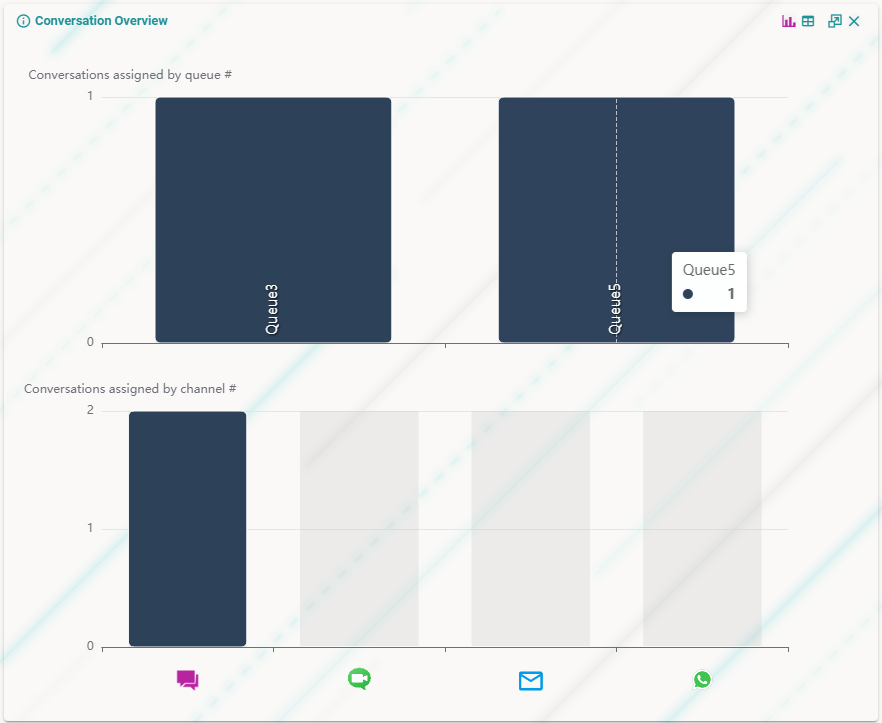
Provides a snapshot of the current status of all tasks across monitored queues.
- First row - tasks split by queue, assigned to agents
- Second row - the same tasks, split by channel
Conversation Status by Channel
Shows the number of active conversations for each channel, split between conversations assigned to agents and conversations still in queue.
If the Preferred Agent feature is enabled, the widget also shows conversations waiting in agents' personal queues.
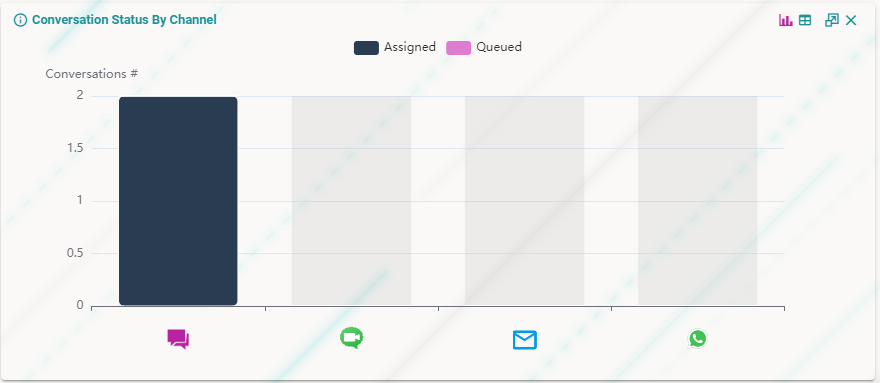
Use this widget to understand workload distribution by channel. A high number of queued conversations on a specific channel may indicate a need for more agents on that channel.
Conversation Status by Queue
Shows the number of active conversations for each queue, split between conversations assigned to agents and those still waiting in queue.
If the Preferred Agent feature is enabled, it also shows conversations in agents' personal queues.
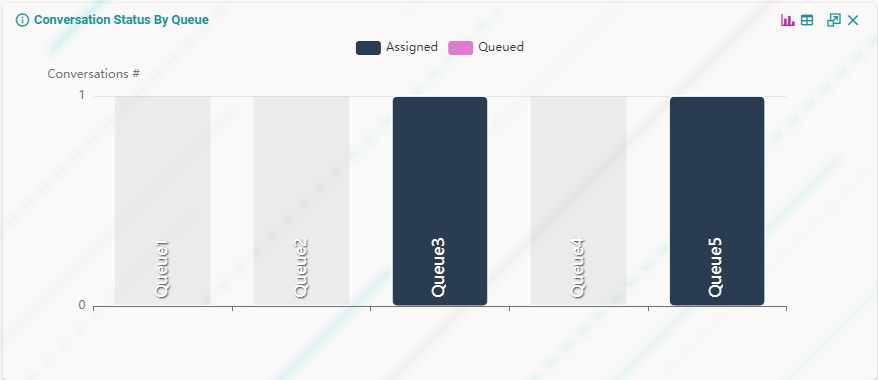
A high queued count on a specific queue indicates that more agents should be skilled on that queue.
Percentage of SLA Expired
Shows the percentage of tasks for which the SLA (Service Level Agreement) response time has expired, broken down by queue. Separate widgets exist for each channel type (chat, social, email), since each has different SLA configurations.
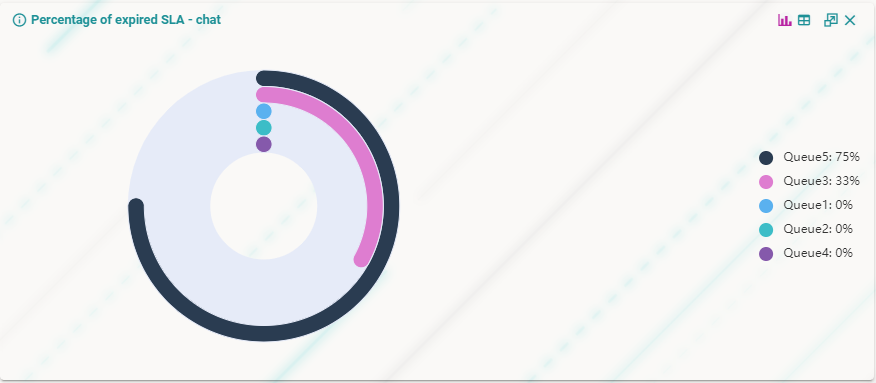
- 0% is the ideal result.
- A value near 100% indicates the queue likely has too few agents to handle the volume of incoming conversations.
Queues Overload
Shows the queue length relative to the total number of inbound tasks. The overload percentage equals the number of queued tasks divided by the total number of inbound tasks (queued + active).
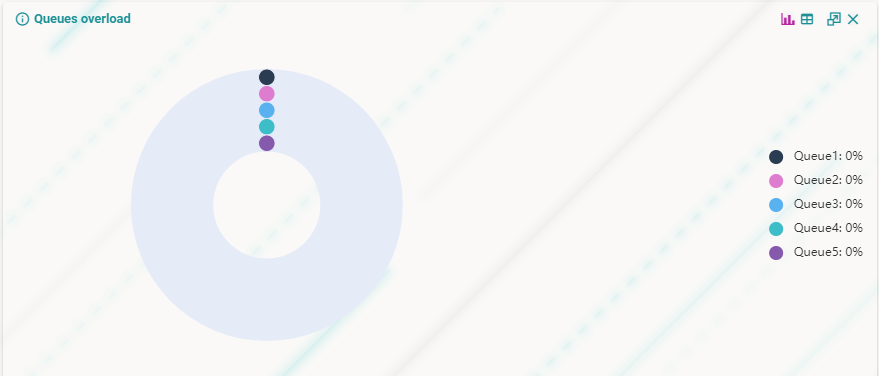
Use this widget to decide whether more agents need to be assigned to a queue to reduce customer wait times.
Conversations Monitoring
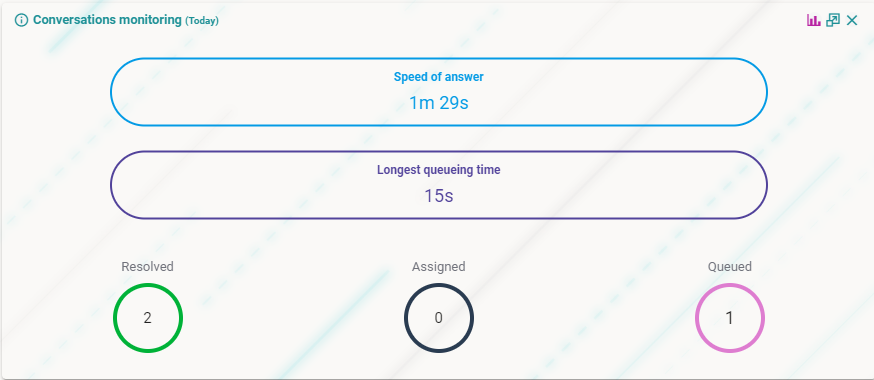
Shows a summary of conversation management KPIs for the current day:
- Speed of Answer - average time a customer waited before receiving the first agent response (queue wait time + first response time)
- Longest Queueing Time - the maximum time a single task waited in queue
Current Day Work Statistics
This section shows a series of charts summarizing the work done during the current day. Each chart can be expanded or collapsed using the icon in the top-right corner of the chart.

Contacts Handled (by hour)
Shows the number of tasks accepted during the day, grouped in 60-minute intervals.
Contacts by Priority
Shows total tasks accepted today, grouped by priority level.
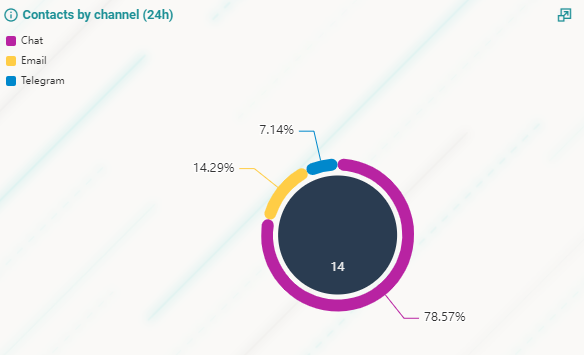
Contacts by Channel
Shows total tasks accepted today, grouped by channel.
Average Response Time
Shows the average response time for messages exchanged during the day. Two KPIs are tracked:
- First Response - time from the customer's first message to the agent's first reply
- Overall Average - average response time across all messages for chat, social, and email