Active Tasks - Managing Your Task List in ConvyAI Agent Desktop
Overview
The Active Tasks list shows all the tasks currently assigned to you. It is always visible on the left side of the Conversations Area.
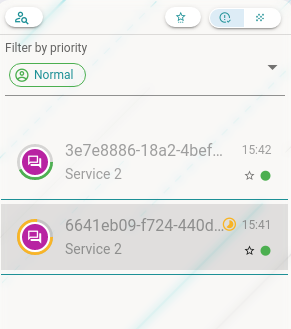
Reading a task item
Each task in the list shows:
- An icon identifying the channel (chat, WhatsApp, Telegram, email, etc.)
- The time the task was accepted
- A preview of the last message sent or received
- A star icon on the right - yellow if the conversation is highlighted
- A colored dot indicating the task priority (green = low, orange = medium, red = high)

Task types
Live chat task

A live chat task means the customer is using the chat interface to contact you in real time. Both the customer and the agent must be present and available to exchange messages. Each live chat task has a unique conversation ID displayed next to the icon.
Email task

An email task means the customer has sent an email to the contact center. Unlike live chat, email is asynchronous - the customer is not waiting for an immediate response. Each email task is identified by the sender's name or email address instead of a conversation ID.
Filtering and sorting tasks
Text search

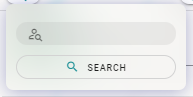
Click the text filter button to open a search bar. Type any text and click the search icon to filter your task list to matching conversations.
Highlighted conversations filter

Click the star button to move highlighted (starred) conversations to the top of the list.
Sort by priority or channel

By default, tasks are sorted by priority. Click the sort button to switch sorting to channel instead. These two sorting modes cannot be applied at the same time.
Priority or channel filter

After selecting a sort mode (priority or channel), a dropdown filter appears. Use it to show only tasks matching a specific priority level (Low, Medium, High) or a specific channel (chat, WhatsApp, Telegram, etc.).