Email Task - Handling Email Conversations in ConvyAI Agent Desktop
Overview
An email task works differently from a live chat task. Email is asynchronous - the customer is not waiting for an immediate reply, and response time is less critical. Email tasks are identified in the active task list by an envelope icon and the sender's name or address.
Reading an email
When you select an email task from the active tasks list, the email appears collapsed. Click the task to expand the thread and read the full content.
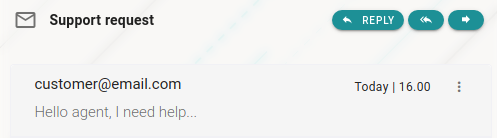
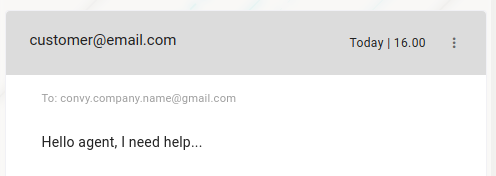
The email shows:
- An envelope icon in the top left
- The email subject chosen by the customer

Replying to an email
Three reply options are available:

Reply - Sends your reply only to the original sender.

Reply All - Sends your reply to all contacts in the email thread.

Forward - Forwards the email to a new recipient.
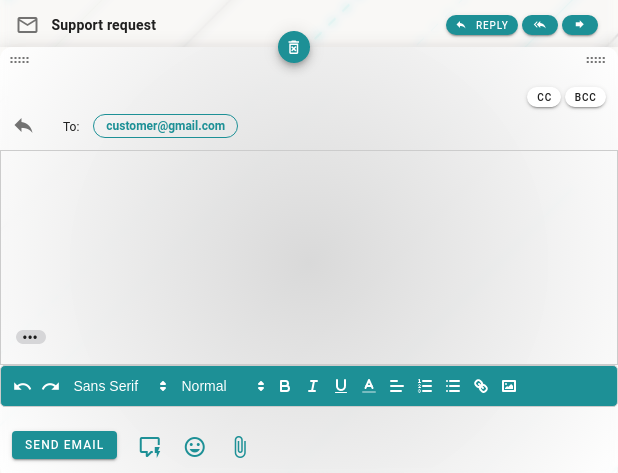
After clicking one of these options, the email reply editor opens.
Using the reply editor
Resizing the editor

Drag the handle at the top edge of the editor to expand or collapse the writing area.
Adding CC and BCC recipients
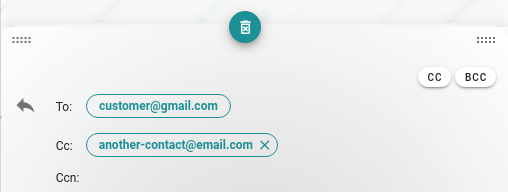
Click CC or BCC to include additional recipients.
- CC (Carbon Copy) - the recipient is visible to everyone in the thread.
- BCC (Blind Carbon Copy) - the recipient is hidden from other recipients.
To add a contact, type the email address in the field and press Enter.
Viewing the quoted message

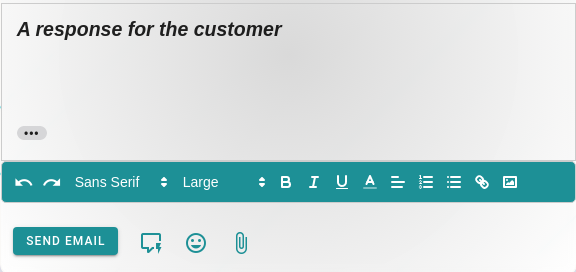
Click the More button to expand and read the content of the message you are replying to.
Formatting the email body
The toolbar below the text area offers text formatting options.
Font and text size

- The first dropdown selects the font family (default: Sans Serif).
- The second dropdown sets the text size: Small, Normal, Large, or Huge.

Text emphasis and color

Select text first, then click one of these options to apply:
- Bold, Italic, Underline
- Text color
Lists

Use these buttons to create numbered or bulleted lists.
Text alignment
The last set of icons aligns text: left, right, center, or justified.
Attachments, shortcodes, and emoticons
Next to the send button, you can insert:

Shortcodes - predefined text blocks

Emoticons - emoji

Attachments - files, images, documents
Always use the Add Attachment button to include files in emails. Do not copy/paste or drag files into the email body - this method is not fully supported by all email clients. All attachments are scanned by the anti-malware service.
Sending and discarding
Send button

When your reply is ready, click Send to deliver it.
Discard draft

Click the trash can button to close the editor and discard everything you have written. This action cannot be undone.