Chat Section - Managing a Conversation in ConvyAI Agent Desktop
Overview
The Chat Section is the central panel of the Conversations Area. It shows the currently selected conversation and gives you all the tools needed to manage it.
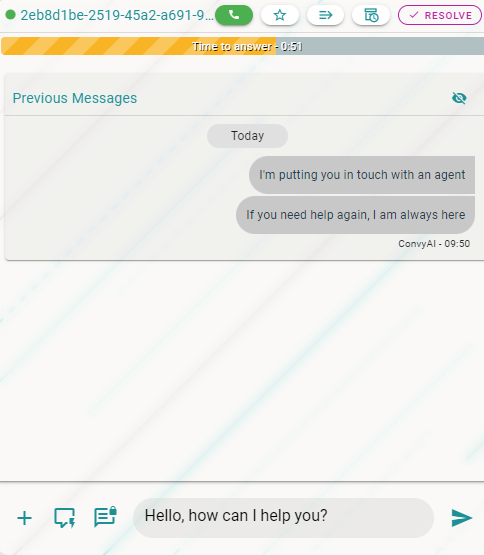
Top Menu Tools
The top menu provides quick access to the functions available for the currently selected task.

Task Priority and ID

On the left side of the top menu, you can see the priority level (color-coded) and the unique ID of the current task.
Call Button

If enabled by your administrator, this button lets you initiate or receive an audio/video call with the customer. See Audio, Video and Screen Sharing for details.
Star Button

Click the star button to highlight the current conversation. Highlighting a task:
- Increases the Star Badge count in the System Bar

- Turns the star icon yellow on the corresponding task item in the Active Tasks list

Transfer Button

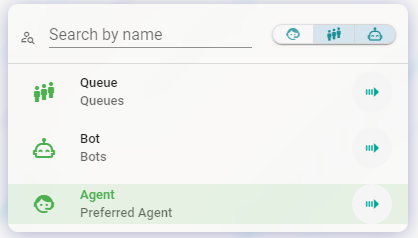
Click the Transfer button to reassign the current conversation to a different queue, bot, or preferred agent configured by your administrator.
- Click the Transfer button. A window opens with a list of available transfer destinations.
- Use the search bar or filters at the top of the window to find the right option.
- Select the destination to complete the transfer.
Park Button

If a task needs more time or information before you can resolve it, use the Park button to temporarily set it aside.
- A parked conversation is removed from your active task list but is not closed.
- You can reopen a parked conversation later from the Reporting Area.
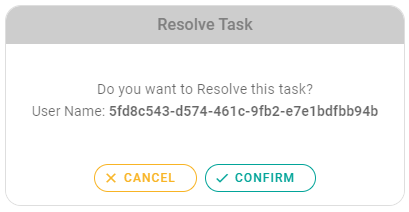
Resolve Button

Click Resolve to end the conversation. A confirmation dialog appears.
If Contact Result is mandatory for the queue, after resolving, a Contact Result panel appears on the right side of the screen. You can still read the conversation, but you cannot send new messages until you have filled in the required information.
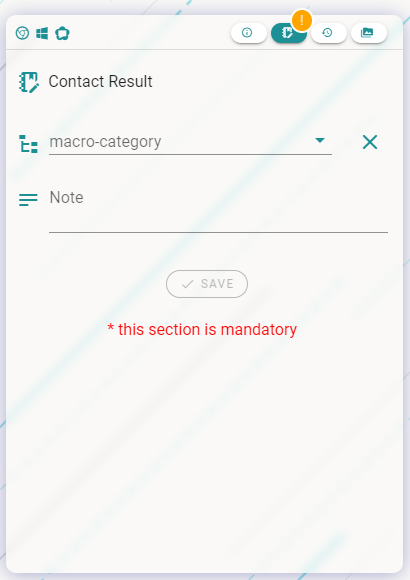
The Alert Badge in the System Bar increases by 1 to remind you that a contact result is pending.

After saving the contact result, the Dispose button replaces the Resolve button. Click Dispose to fully close the task and remove it from your list.

Even with Contact Result mandatory, the conversation is technically already closed as soon as you click Resolve. If you refresh the Agent Desktop before saving the Contact Result, the task will no longer be visible. To recover it, go to the Reporting Area and find the conversation in the user history.