Queues - Omnichannel Routing and Channel Configuration in ConvyAI
Overview
A queue is the entry point for incoming customer tasks. When all assigned agents are busy or unavailable, tasks are held in the queue and dispatched based on priority and arrival order, following the same logic as a physical queue.
Each queue defines which channels are active, the timeout and SLA thresholds, and optional behaviors like automatic task acceptance, transfers, and post-conversation contact results.
Prerequisites
- Admin panel access with queue management permissions.
Create a queue
Navigate to ConvyAI Agents → Queues and click New Queue.
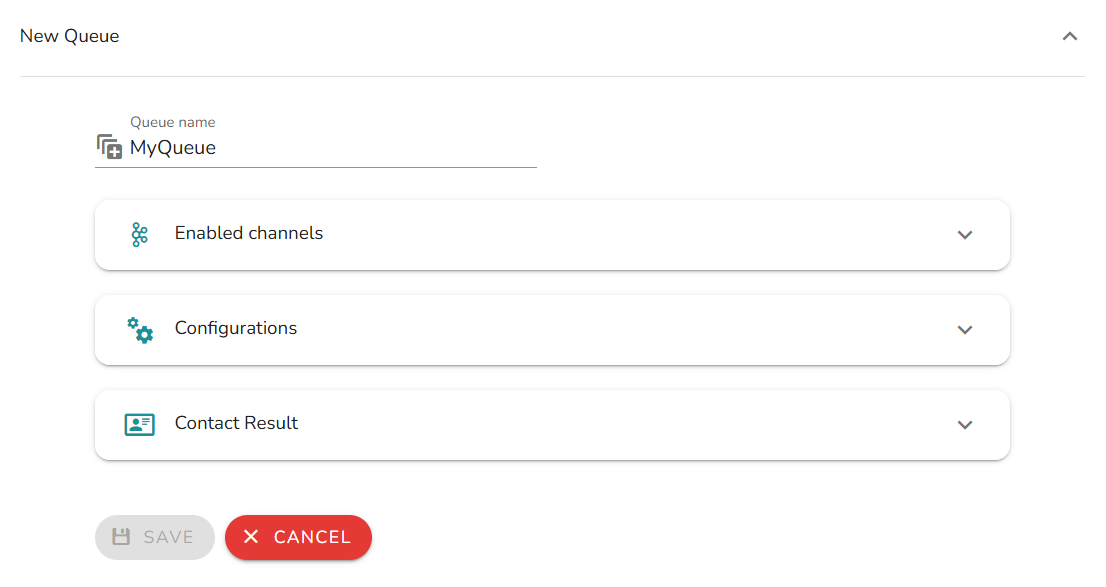
Queue name
| Field | Description |
|---|---|
| Queue Name | A unique name to identify this queue. |
Channels
This section defines which channels customers can use to contact agents through this queue. Enable one or more among Chat, Social, and Email by clicking the channel name.
Each channel shares the same configuration options; only the default values differ. Time is expressed in seconds for chat, and minutes for social and email.
| Field | Description |
|---|---|
| Timeout preferred agent | Time a customer waits for their preferred agent before being redirected to the first available agent in the same queue. |
| Queue timeout | Maximum time a customer can wait in the queue. When this expires, the service is considered unavailable. |
| SLA | Service Level Agreement threshold - the target time within which an agent should answer. Set to 0 to disable. |
Audio/Video (Chat channel only)
When the chat channel is enabled, you can optionally activate audio/video communication between agent and customer.
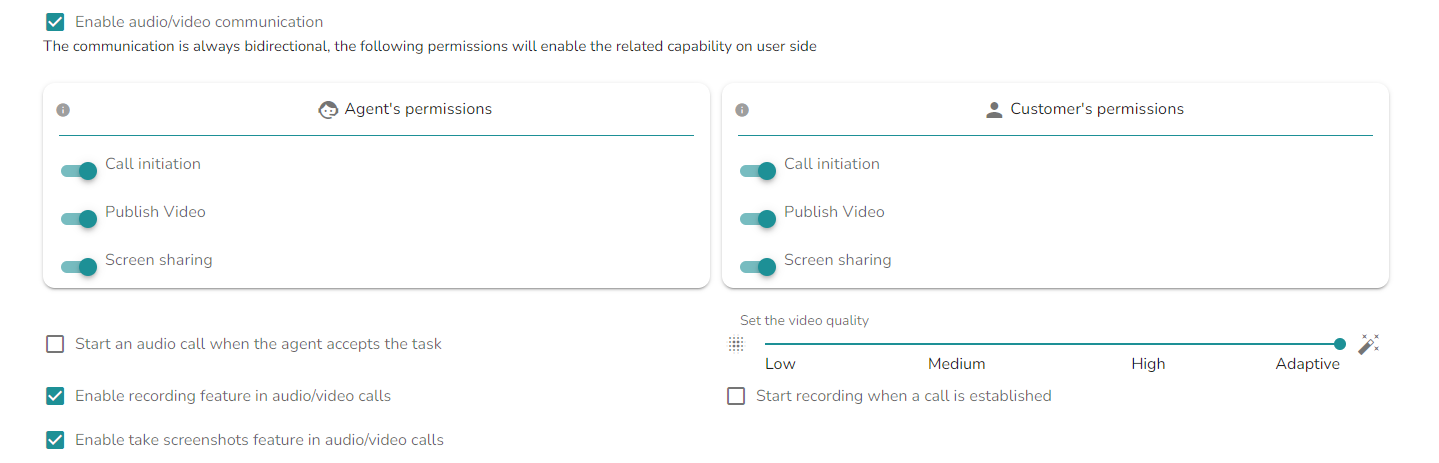
Each permission can be enabled independently for both agent and customer sides.
| Option | Description |
|---|---|
| Call initiation | Allows the user to start an audio/video call. Can be enabled for agent side, customer side, or both. |
| Video | Allows the user to share their camera during a call. |
| Screen sharing | Allows the user to share their screen during a call. Not supported on smartphones or tablets on the customer side. |
| Start audio call when agent accepts the task | Automatically starts the audio/video call when the agent accepts the conversation. |
| Set the video quality | Sets the video resolution: 360p (low), 720p (medium), 1080p (high), or auto (adaptive, based on available bandwidth). Applies when video is enabled on at least one side. |
| Enable recording feature | Allows the user to manually start recording the audio/video call. |
| Start recording when a call is established | Automatically starts recording when an audio/video call begins. |
| Enable take screenshots feature | Allows the user to take screenshots during a video call - from the customer's camera or screen sharing stream. |
Routing options
| Option | Description |
|---|---|
| Enable auto accept | Tasks are automatically assigned to the first available agent without requiring manual acceptance. |
| RONA timeout | Maximum time an agent has to accept an incoming task. If the agent does not accept within this window, the system searches for another available agent. Default: 20 seconds. Only visible when auto accept is disabled. This value should be less than the channel queue timeout. |
| Enable transfer | Allows agents to transfer an accepted task to another queue. |
| Transfer allowed to | Selects the queues that can receive transferred tasks. Leaving this field blank enables transfer to all queues. The originating queue is always a valid transfer target. Only available when transfer is enabled. |
Contact Result
Enabling this section allows agents to annotate the outcome of a conversation by selecting a category after closing it.
- Categories support up to three levels of depth.
- A free-text field is also available.
- Contact Result can be set as mandatory or optional.
Notes and limitations
- RONA timeout must be lower than the queue timeout for the channel, otherwise tasks may expire in the queue before the RONA fires.
- Screen sharing is not available for customers on mobile devices, regardless of the queue configuration.
- Changing timeout or SLA values on an active queue takes effect immediately for new tasks entering the queue.