Campaign Lists - Create Outbound Campaigns in ConvyAI
Overview
The Campaign Lists section is where you create and manage outbound campaigns. Each campaign defines the target audience, the channel, the message template, the sending mode, and the scheduling.
Navigate to Outbound → Campaign Lists.
Create a campaign
Click the + button to open the campaign creation form.
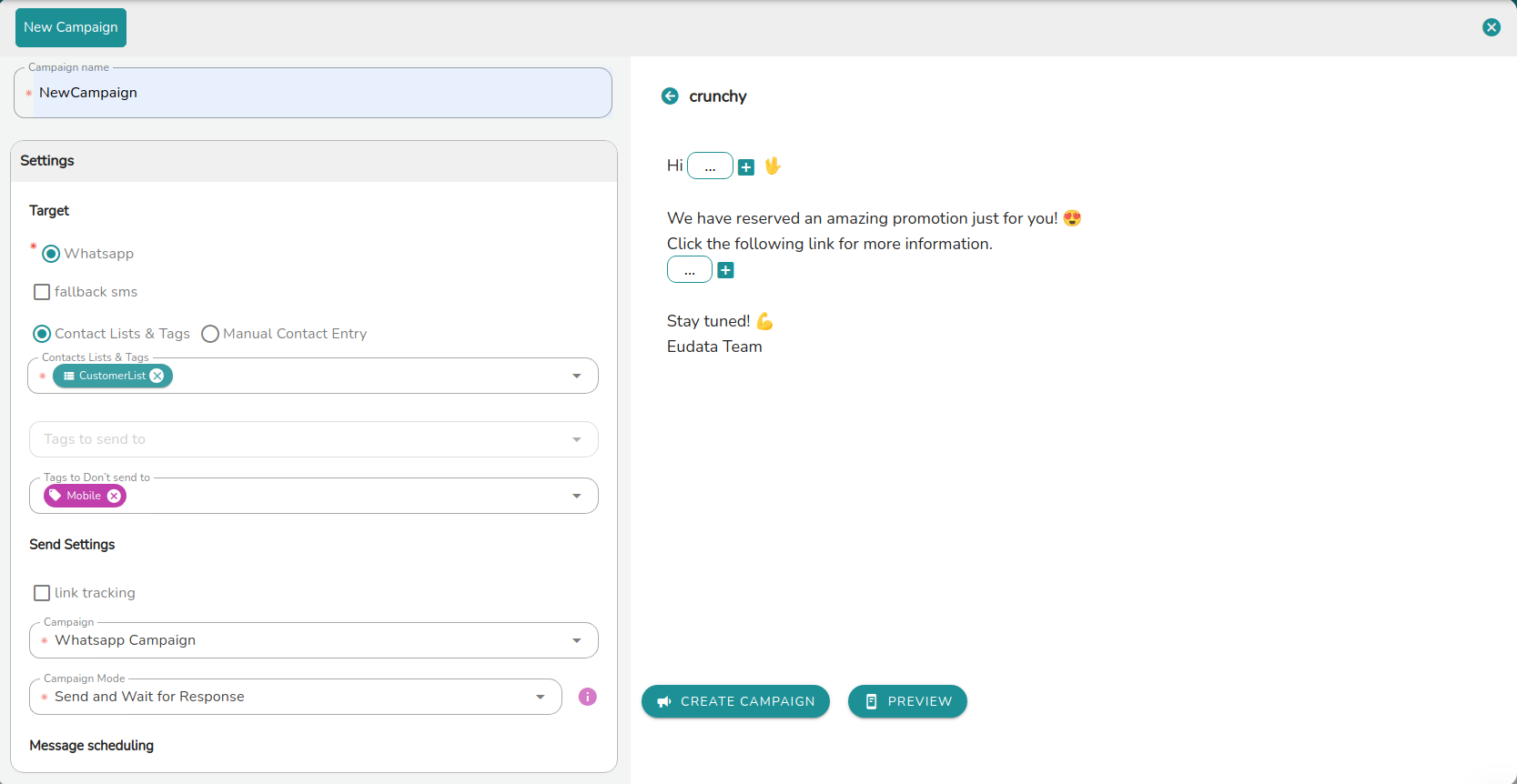
Campaign name
Enter a name for the campaign.
Target
| Field | Description |
|---|---|
| Channel | The channel to use. Currently, WhatsApp is required. |
| SMS fallback | Enable to send an SMS if the WhatsApp message cannot be delivered. |
| Contact list | The contact list to use as the campaign's audience. |
Define targets
You can define the target audience in two ways:
Option 1 - List and tag selection: Select one or more contact lists or tags as targets. Then refine the audience using inclusion or exclusion filters based on the tags associated with each contact. Inclusion and exclusion are mutually exclusive - you can apply one or the other, but not both at the same time.
Option 2 - Manual Contact Entry: Select this option to manually enter up to 5 contacts by phone number or WhatsApp BSUID, or by searching among already-saved contacts - including contacts identified only by BSUID.
Sending options
| Option | Description |
|---|---|
| Link tracking | Enable to track link clicks within the outbound message. |
| Send and wait for response | Messages are sent to users. Any responses they provide are ignored and not processed by ConvyAI. Use when the goal is simply to inform customers without requiring further interaction. |
| Send and discard | Messages are sent and ConvyAI waits for the customer's response before starting the associated bot. Use when the goal is to manage the user's interest in the active campaign. |
| Send and process | Messages are sent and ConvyAI automatically starts the associated bot. Use when the goal is to initiate a user journey from the moment the outbound campaign is sent. |
Campaign duration and scheduling
Define when the campaign runs and when messages can be sent.
| Field | Description |
|---|---|
| Start date/time | When the campaign becomes active and starts sending messages. |
| End date/time | When the campaign stops. No messages are sent after this time. |
| Sending window - hours | The daily time range during which messages can be sent (e.g., 09:00–18:00). Messages scheduled outside this window are held until the window reopens. |
| Sending window - days | The days of the week on which messages can be sent. Messages falling on excluded days are held until the next allowed day. |
Template
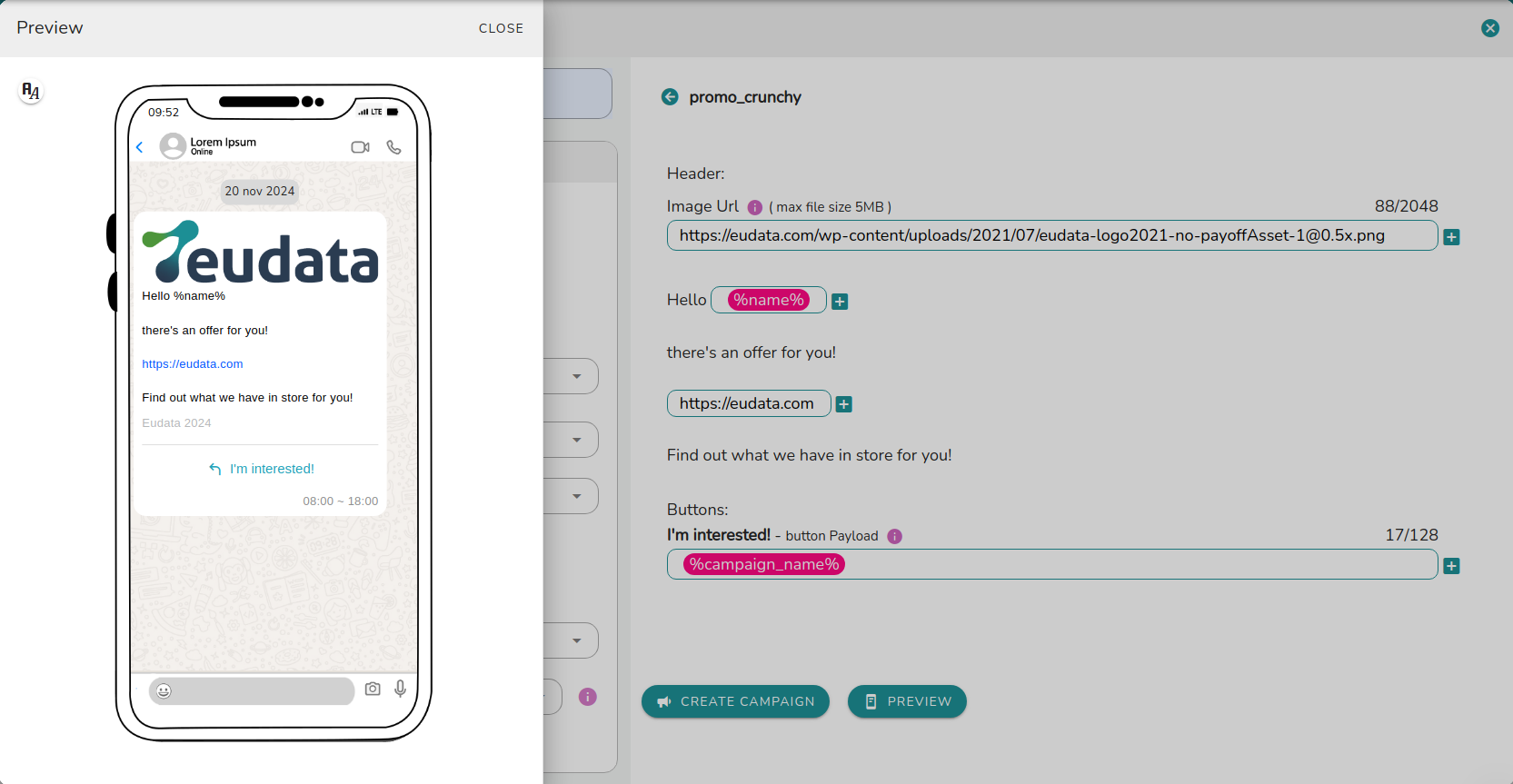
Select the WhatsApp template to use for the campaign. Both text and media template types are supported.
Placeholder values
For each placeholder in the template, you can:
- Enter fixed text - the same value is used for all contacts.
- Select a field from the contact record - the value is personalized for each individual contact.
Once the template is filled in, a preview of the message appears on a virtual phone interface.