Knowledge Base Indexing - Index Documents and Websites in ConvyAI
Overview
The Indexing page is where you create and run batches that populate the Knowledge Base. Each batch extracts content from a source, generates vector embeddings, and stores them in the vector database. You can run multiple batches from different sources and organize them under one or more index names.
Navigate to Generative AI → Indexing to manage your batches.
Create an indexing batch
Click New Index Batch to open the configuration form.
Source: AWS S3
Use this source to index PDF or DOC files stored in an AWS S3 bucket.
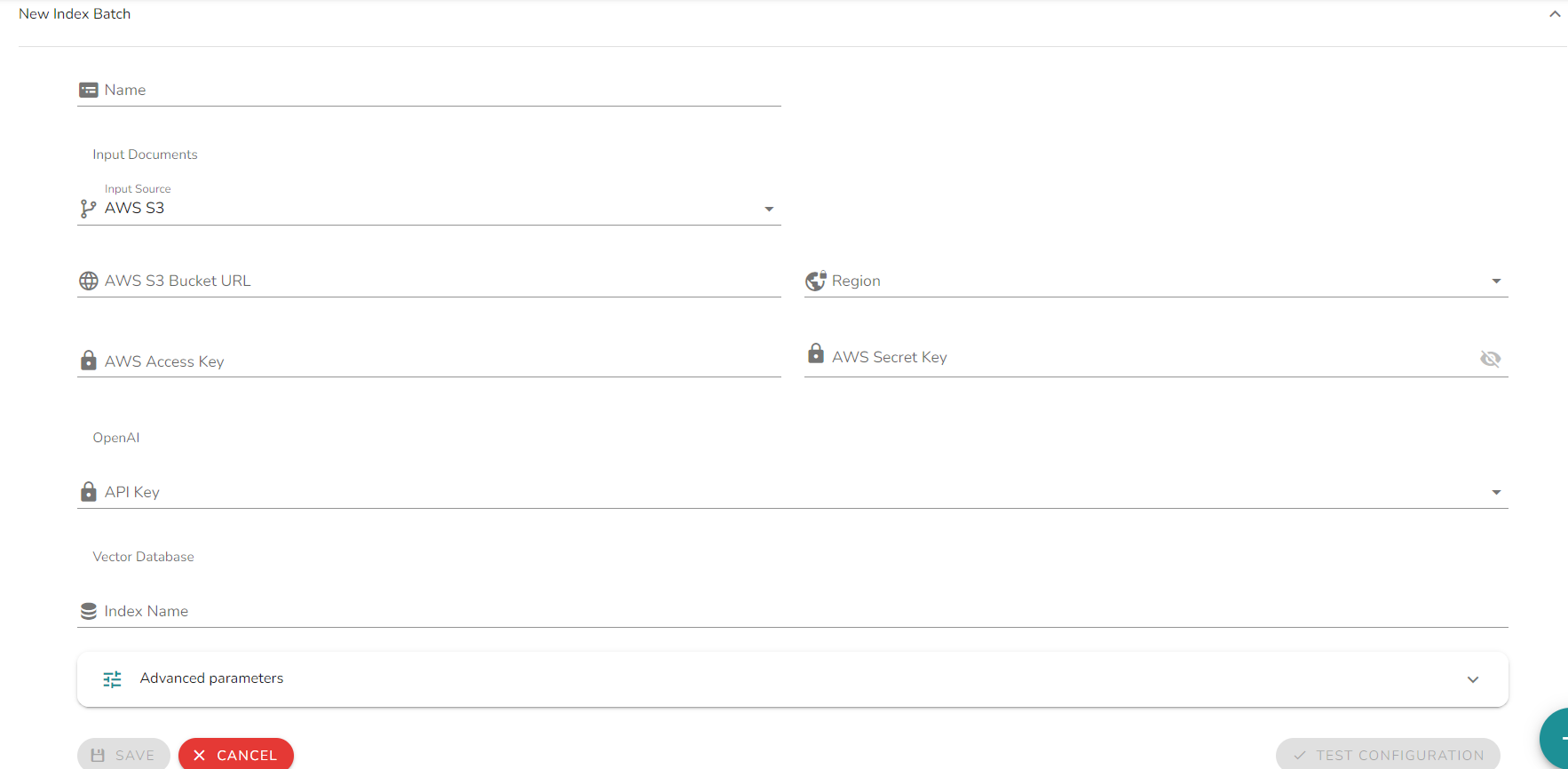
| Field | Description |
|---|---|
| Bucket URL | The URL of the S3 bucket containing the documents. |
| Region | The AWS region of the S3 bucket. |
| Access Key | AWS access key with read permissions on the bucket. |
| Secret Key | AWS secret key associated with the access key. |
Source: Website crawler
Use this source to index content from a public website. The crawler traverses the site starting from the root URL and extracts text from each page it reaches.
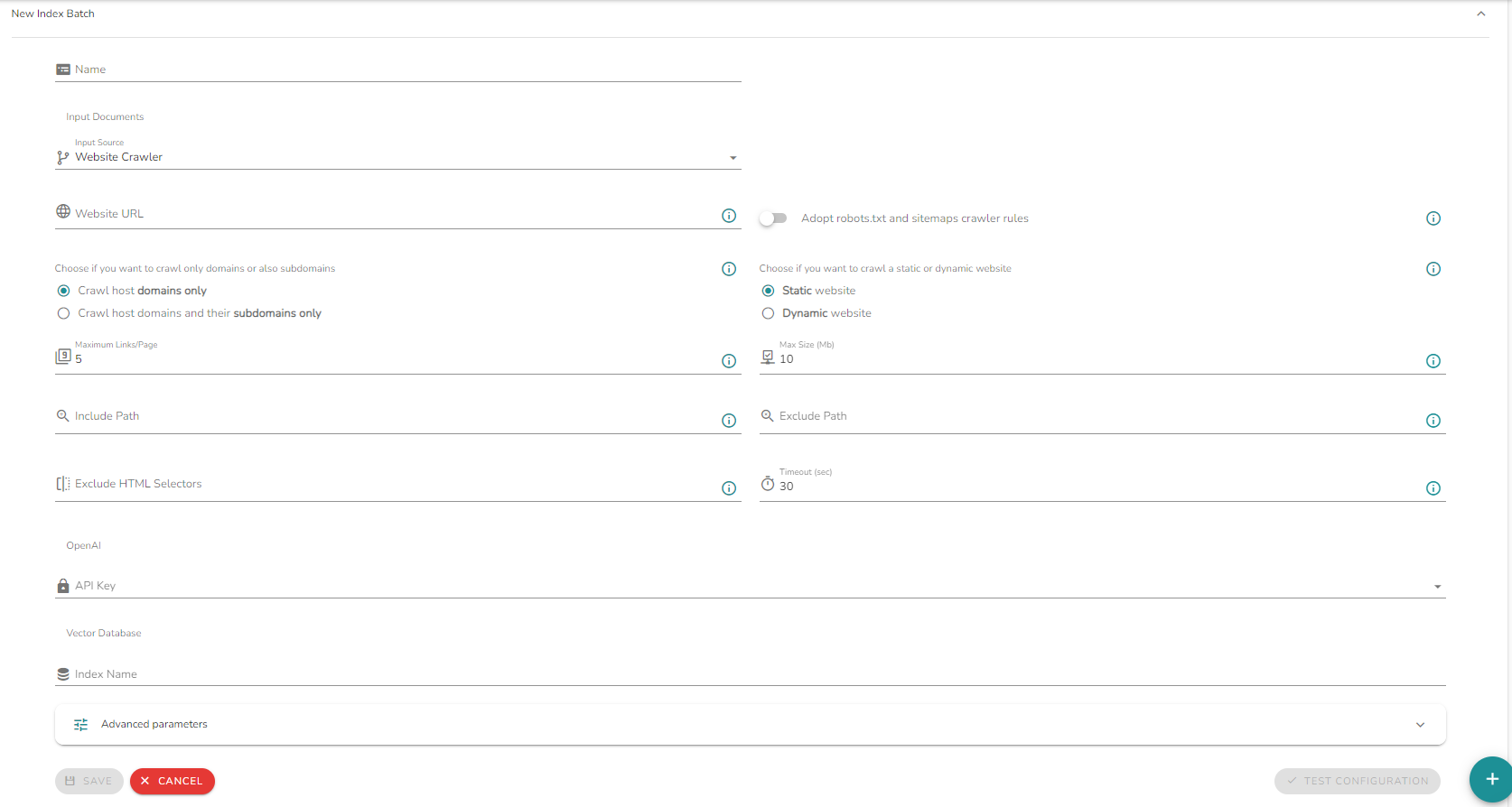
| Field | Description |
|---|---|
| Website URL | The starting URL for the crawler. |
| Crawl scope | Choose whether to crawl only the exact domain or also include subdomains. |
| Website type | Choose between Static (standard HTML pages) and Dynamic (JavaScript-rendered pages). Dynamic crawling is slower but required for single-page applications or pages that load content asynchronously. |
| Maximum links per page | Maximum number of links the crawler follows from each page. Default: 5. |
| Max size (MB) | Maximum total size of content to index from this source, in megabytes. Default: 10. |
| Include path | Optional. Restrict crawling to URLs matching this path pattern. Only pages under the specified path will be indexed. |
| Exclude path | Optional. Skip URLs matching this path pattern. Useful to exclude sections like /blog, /careers, or /login. |
| Exclude HTML selectors | Optional. CSS selectors for page elements to strip before indexing (e.g., nav, footer, .cookie-banner). Reduces noise in the indexed content. |
| Timeout (sec) | Maximum time to wait for a page to load before skipping it. Default: 30. |
Index name
The index name determines how content is organized in the Knowledge Base.
| Strategy | Description |
|---|---|
| Single index name across all batches | All content is merged into one knowledge domain. Bots query the entire Knowledge Base without distinction. |
| Different index names per batch | Content is partitioned into separate domains (e.g., products, support, legal). Each bot node can specify which index to query, scoping the LLM context precisely. |
Advanced parameters
| Parameter | Description |
|---|---|
| Token per chunk | The size of each text chunk extracted from the source, in tokens. Smaller chunks improve precision; larger chunks provide more context per retrieval. |
| Token overlap | The number of tokens shared between consecutive chunks. Overlap preserves context at chunk boundaries, reducing the risk of splitting semantically related content. |
| Encoding model | The language model used during the indexing process. |
| Embedding model | The model used to generate vector embeddings. Must match the embedding model configured in the AI Model used at query time. Selecting an API Key of a given provider prefills this field with that provider's default embedding model; the value remains an editable text field. |
Supported embedding models:
| Model | Provider |
|---|---|
text-embedding-3-small | OpenAI (default for OpenAI stack) |
text-embedding-3-large | OpenAI |
cohere.embed-multilingual-v3 | Amazon Bedrock (default for AWS stack) |
amazon.titan-embed-text-v1 | Amazon Bedrock |
BAAI/bge-m3 | Xference (default for Xference stack) |
Test and run
Before running a batch, use the Test button to validate the configuration and verify connectivity to the source.
Once the test passes, click Run to start the indexing process. Duration varies based on the volume of content. A notification is sent when the batch completes.
Batch status
| Status | Description |
|---|---|
| Ready | Configuration is saved and ready to be executed. |
| Running | The batch is currently processing. |
| Completed | The batch has finished successfully. |
| Cancelled | The batch was manually cancelled or encountered an error. |
Notes and limitations
- The embedding model used during indexing must match the one used in the AI Model at query time. Using different models produces incorrect retrieval results.
- Indexes built with different embedding models are not compatible with each other. Switching the embedding model on an existing Knowledge Base requires creating a new index and fully reindexing the content - there is no automatic migration or conversion of existing indexes.
- Multiple batches can run in parallel.
- Deleting a batch does not remove the indexed content from the Knowledge Base. Use Document Management to remove indexed content.