AVA Customization - Configure Deployments, Layout, and Security in ConvyAI
Overview
Customization defines how AVA is deployed and presented to end users. Each connector links AVA to a specific bot, applies visual branding, configures security restrictions, and generates the HTML snippet used to embed or access the instance.
Navigate to AVA → Customization.
Create a connector
Click the + button. A form appears with three sections: base configuration, Layout, and Security.
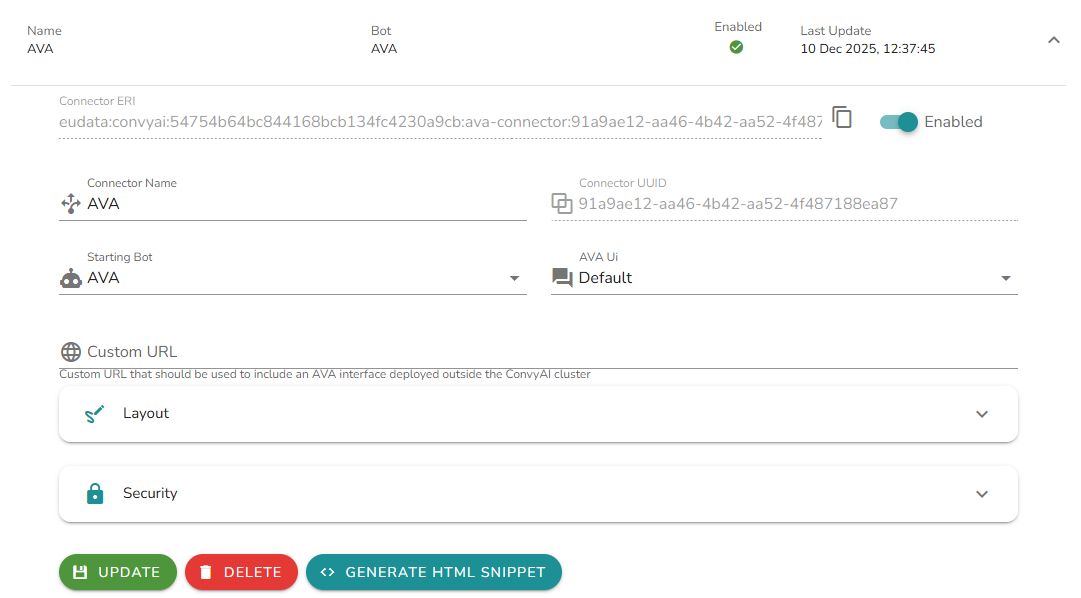
Base configuration
| Field | Description |
|---|---|
| Name | A unique name for this connector. |
| Bot | The ConvyAI bot to use for this AVA instance. |
| AVA interface | The AVA interface template to apply. |
| Custom URL | An optional custom URL path for accessing this AVA deployment. |
Layout
The Layout section controls the visual presentation and interaction options of this connector.
| Field | Description |
|---|---|
| Display name | The name shown to users in the AVA interface. |
| Logo header | The logo displayed in the AVA header. |
| Logo URL | A URL pointing to the logo image to use. |
| Show text input | Whether to display the text input field for typed messages. |
| Show footer | Whether to display the footer in the AVA interface. |
| Translations | Language-specific overrides for interface labels, supporting multilingual deployments. |
Quick actions
Quick actions are preconfigured buttons that allow users to immediately trigger a specific flow, bypassing the conversational path. They are displayed both on the AVA entry page and on the side of the chat once the conversation has started.
| Field | Description |
|---|---|
| Name | The label displayed on the quick action button. |
| Icon | The icon associated with the quick action. |
| Flow | The bot flow triggered when the user clicks the button. |
| Version | The flow version to use. |
| Hook | The entry hook within the flow where execution starts. |
Security
The Security section controls who can access this AVA deployment.
| Field | Description |
|---|---|
| Domain list | A list of allowed domains from which AVA can be accessed. Restricts cross-origin access. |
| IP Whitelisting | Enable to restrict access to AVA to specific IP addresses or ranges. |
Generate the HTML snippet
After saving the connector, click Generate HTML snippet to get the integration code for this AVA deployment.
A dialog appears with two options:
| Field | Options | Description |
|---|---|---|
| Language | Italian, English, Custom | The default language for the AVA interface. Select Custom to define a language code manually. |
| Inclusion mode | URL, Script | How AVA is accessed or embedded. |
URL mode generates a direct link to an AVA page hosted by ConvyAI. Share or link to this URL to give users access to AVA without embedding it.
Script mode generates a JavaScript snippet to include AVA on any web page. Add the snippet to your HTML before the closing </body> tag:
<script type="text/javascript"
  src="https://<domain>/ava/static/ava/includeAVA_v1.js?rnd=<token>&connectorId=<id>&lang=<lang>">
</script>
| Parameter | Description |
|---|---|
rnd | Random token for cache-busting. |
connectorId | Unique identifier of the connector. |
lang | Language code for the AVA interface (e.g., en, it). |