AWS Configuration for Eudata Connect Suite - IAM, Kinesis, and Amazon Connect Setup
Overview
Before configuring Next2Connect, make sure your Amazon Connect instance is active. You will need to set up the following AWS resources:
- IAM Role - grants Comet access to your Amazon Connect instance to manage outbound campaigns.
- Kinesis Data Firehose - forwards Contact Trace Records (CTRs) from Amazon Connect to Comet for reporting.
- Approved Origins - authorizes the Next2Connect domain in your Amazon Connect instance.
- Amazon Connect Contact Events (optional) - required only if you need to monitor silent calls.
IAM Role
To allow Comet to make requests to your Amazon Connect instance, create an IAM Role that permits a Lambda function running in the Comet AWS account to assume a role in your account.
In the AWS Console, navigate to IAM → Roles.
Click Create Role, select Another AWS account, set the Account ID to 033614604266, and click Next: Permissions.
Search for AmazonConnect in the permissions search box, select AmazonConnect_FullAccess, and click Next: Tags.
Optionally add tags, then proceed to the review step. Assign a name and description of your choice and click Create Role.
Once the role is created, open its Summary and copy the Role ARN - you will need it during the Next2Connect module configuration.
Trust Relationships
In the Trust relationships tab of the newly created role, verify that the trust policy is set to:
{
    "Version": "2012-10-17",
    "Statement": [
        {
            "Effect": "Allow",
            "Principal": {
                "AWS": "arn:aws:iam::033614604266:role/OCM-RoleForSchedulerLambda"
            },
            "Action": "sts:AssumeRole"
        }
    ]
}
Minimal Permissions Alternative
If you prefer not to grant full AmazonConnect_FullAccess, you can use the following custom inline policy instead, which grants only the permissions Comet actually requires:
{
    "Version": "2012-10-17",
    "Statement": [
        {
            "Sid": "MinimalAccessToAmazonConnect",
            "Effect": "Allow",
            "Action": [
                "connect:ListPhoneNumbers",
                "connect:ListPhoneNumbersV2",
                "connect:ListQueues",
                "connect:ListContactFlows",
                "connect:ListAgentStatuses",
                "connect:StartOutboundVoiceContact",
                "connect:GetMetricData",
                "connect:GetMetricDataV2",
                "connect:GetCurrentMetricData"
            ],
            "Resource": ["*"]
        }
    ]
}
Kinesis Data Firehose
Configuring a Kinesis Data Firehose stream allows Comet to receive outbound call results from Amazon Connect and generate usage reports.
You need to configure the Data Streaming of Contact Trace Records (CTRs) via a Kinesis Data Firehose.
If your Amazon Connect instance already has data streaming configured via an existing Kinesis Data Stream, skip to Add a Firehose output to an existing Kinesis Data Stream.
Create the Firehose stream
In the AWS Console, search for Kinesis and open Kinesis Data Firehose. Click Create delivery stream and configure it as follows:
Step 1 - Name and source
- Delivery stream name: any name you prefer (e.g.
CometReportNotifications) - Source:
Direct PUT or other sources - Server-side encryption: optional
Step 2 - Process Records
Leave all defaults and click Next.
Step 3 - Choose a destination
- Destination:
HTTP Endpoint - HTTP endpoint name:
Comet Report Endpoint - HTTP endpoint URL:
https://comet.eudataservice.com/prod/reporting-manager - Content encoding:
GZIP - Retry duration:
300 - S3 backup mode:
Failed data only- select or create an S3 bucket for failed delivery backup.
Step 4 - Configure settings
- Buffer size:
5 - Buffer interval:
60
Leave all other settings as defaults. Click Create delivery stream.
Enable data streaming in Amazon Connect
In the AWS Console, open your Amazon Connect instance details and navigate to Data streaming.
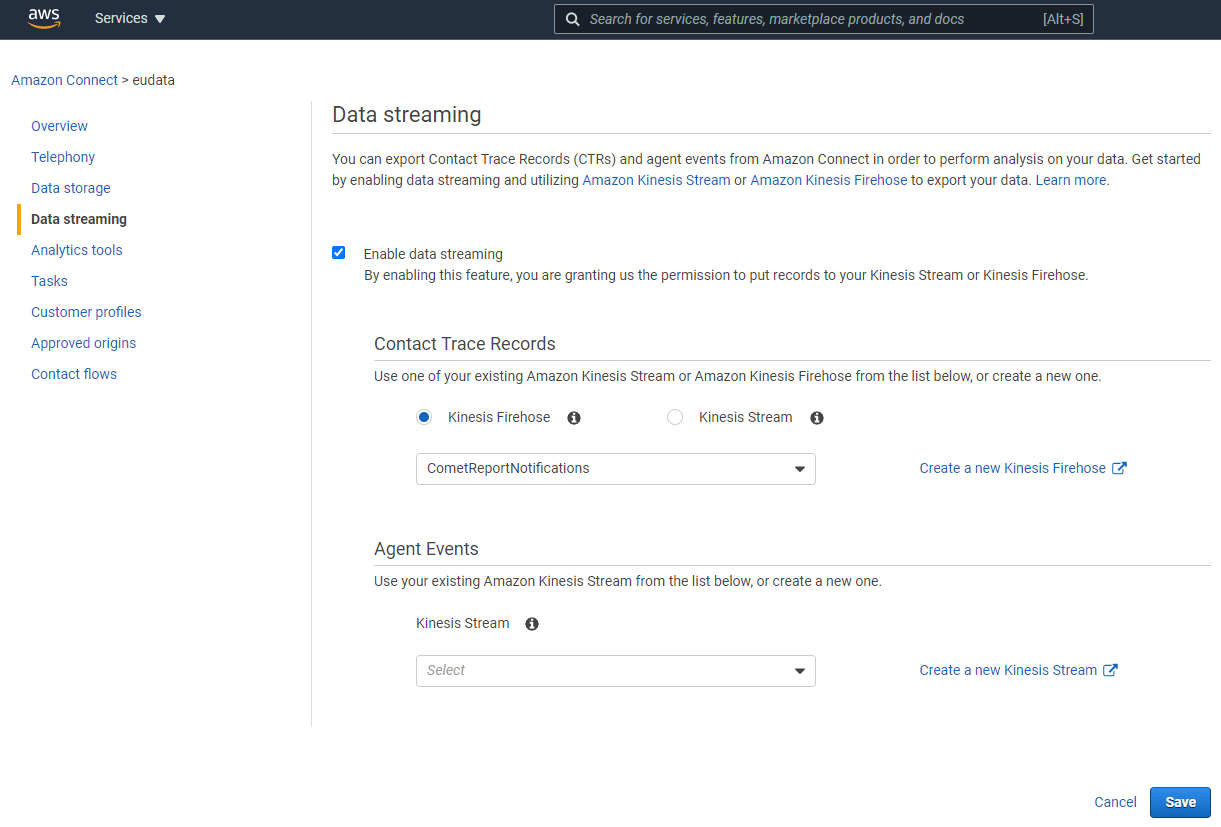
Enable the Enable data streaming checkbox, select Kinesis Firehose, choose the stream you just created, and click Save.
Add a Firehose Output to an Existing Kinesis Data Stream
If your Amazon Connect instance already uses a Kinesis Data Stream for CTR streaming, add a Firehose consumer to that stream instead of creating a new one.
In the Amazon Kinesis service, go to Data Streams and open the existing stream. In the Consumers section, click Process with Firehose stream.
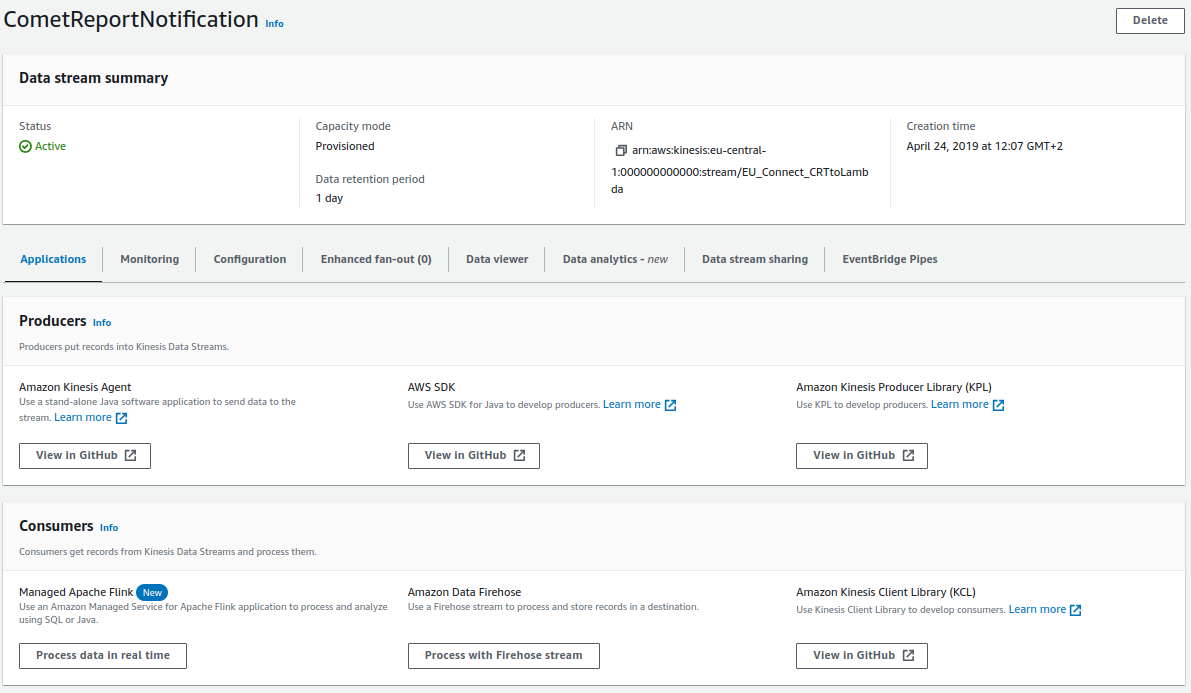
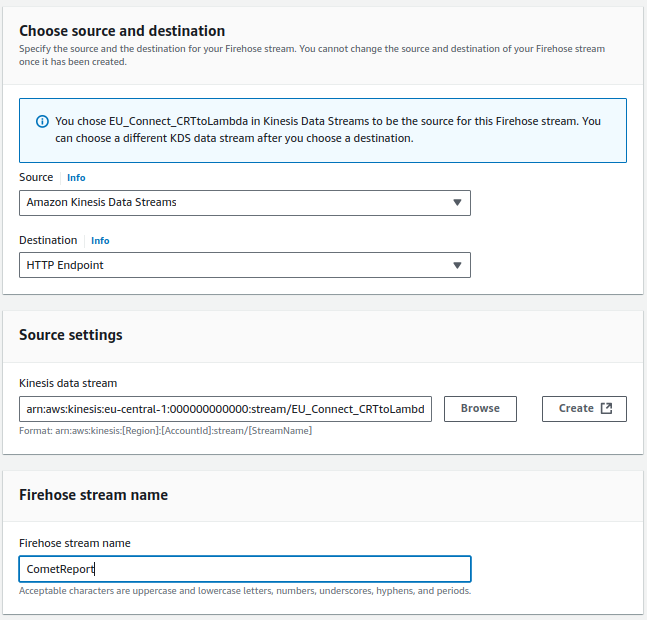
Configure the new Firehose stream output with these settings:
Source and destination
- Source:
Amazon Kinesis Data Streams(pre-selected) - Destination:
HTTP Endpoint - Firehose stream name: any name you prefer
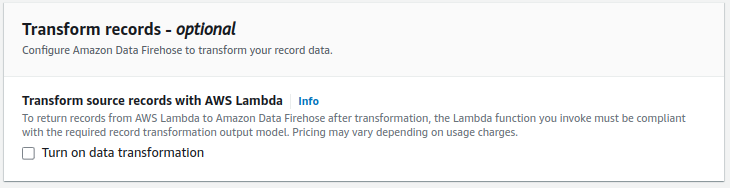
Transform records
Leave the Turn on data transformation checkbox unchecked.
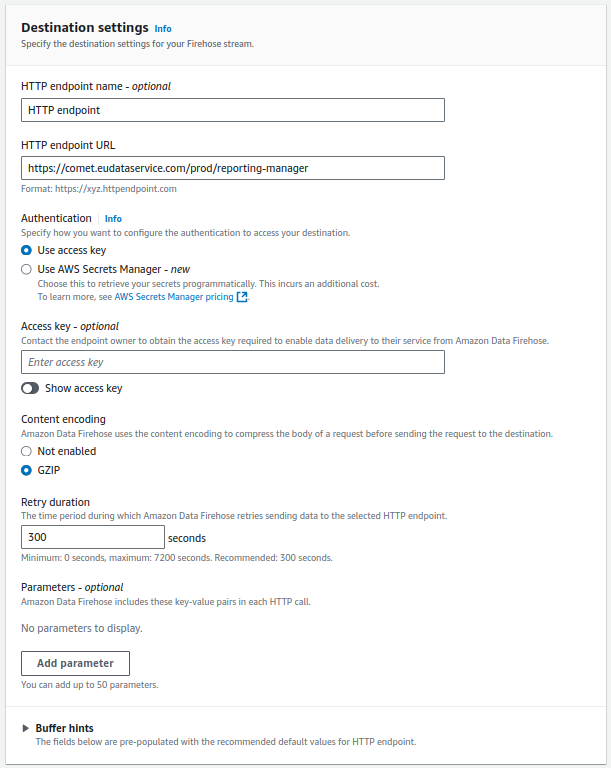
Destination settings
- HTTP Endpoint URL:
https://comet.eudataservice.com/prod/reporting-manager - Content Encoding:
GZIP - Retry Duration:
300seconds
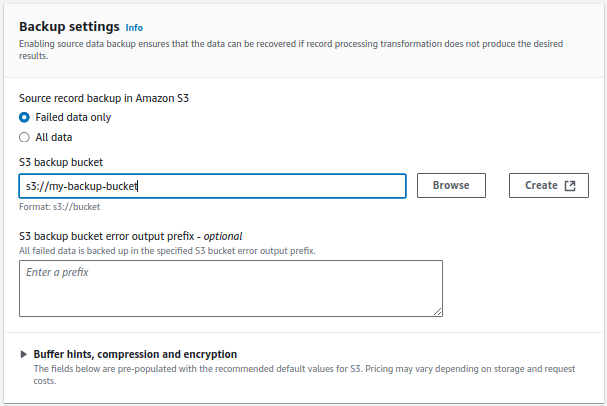
Backup settings
Select Failed data only and specify an S3 bucket for failed delivery backup.
Leave all other settings as defaults.
Approved Origins
Next2Connect must be registered as an approved origin in your Amazon Connect instance for agents to log in.
In the AWS Console, open your Amazon Connect instance and navigate to Approved origins. Click + Add origin and add:
https://agent.next2connect.nethttps://sandbox.next2connect.net(temporary - can be removed after go-live)
Connect URL
To integrate Next2Connect with your Amazon Connect instance, you need the instance URL. Depending on when your instance was created, it will be in one of these formats:
https://[instance-name].awsapps.com/connect/https://[instance-name].my.connect.aws/
Retrieve it from the Access URL field in your Amazon Connect instance details on the AWS Console.
Connect ARN
You will also need the Amazon Connect instance ARN during Next2Connect module setup. Open the Instance Alias to access the Overview section - the ARN is listed there.
The ARN follows this format:
arn:aws:connect:eu-central-1:123456789012:instance/acba171e-9z1a-8237-wg3d-vg1r2zae1c71
The relevant fields within the ARN are:
| Position | Field | Example value |
|---|---|---|
| 4th segment | Region code | eu-central-1 |
| 5th segment | AWS Account ID | 123456789012 |
| 6th segment | Instance ID | acba171e-9z1a-8237-wg3d-vg1r2zae1c71 |
Note the Connect URL and ARN - both are required in the Administration Panel configuration steps.
Amazon Connect Contact Events
This section is required only if you need to monitor and manage silent calls. It involves configuring Amazon EventBridge to forward Amazon Connect Contact Events to Comet.
1. Create an API Destination in EventBridge
First, create a Connection:
- Destination type:
Other - Authorization type:
API Key - API key name:
tenant - Value: your Next2Connect tenant ID
Then create the API Destination using this configuration:
- Endpoint URL:
https://comet.eudataservice.com/prod/dialer-orchestrator/report-contact-events - HTTP method:
POST
2. Create an EventBridge Rule
Create a rule with an event pattern that filters Amazon Connect Contact Events and routes them to the API Destination you created. Replace <aws_region>, <account_id>, and <instance_arn> with your values:
{
  "source": ["aws.connect"],
  "detail-type": ["Amazon Connect Contact Event"],
  "detail": {
    "instanceArn": ["arn:aws:connect:<aws_region>:<account_id>:instance/<instance_arn>"],
    "channel": ["VOICE"],
    "eventType": ["DISCONNECTED"]
  }
}
Set the rule target to the API Destination created above.
Call Transfer from a Third-Party Provider
Amazon Connect does not natively support SIP Trunking, so call transfers are the only option when Amazon Connect is used alongside a third-party telephony provider. In this scenario, Amazon Connect receives calls from the provider's phone number rather than the original caller's number, losing the caller identity needed for contact history matching.
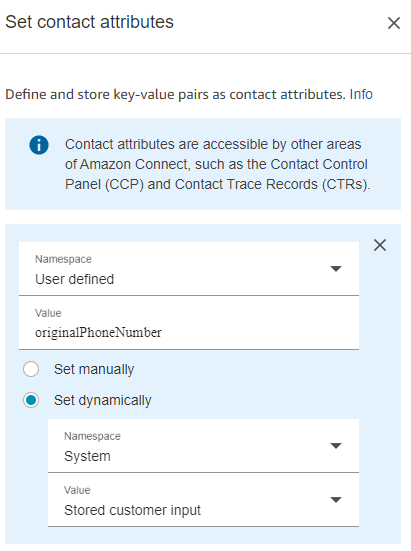
To solve this, Next2Connect supports a system contact attribute called originalPhoneNumber. When populated with the caller's actual phone number, Next2Connect uses it for contact reconciliation and history enrichment without changing the agent experience.
Set the originalPhoneNumber attribute using the Set contact attributes node in your Amazon Connect Contact Flow:
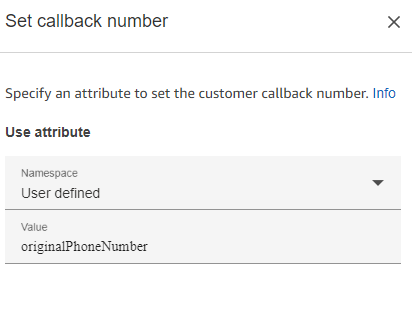
To also support callbacks, pass originalPhoneNumber to the Set callback number node in the Contact Flow:
What's next
With the AWS configuration complete, proceed to Administration Panel Initial Setup to configure your tenant, module instances, and routing profiles.