Administration Panel - System Section
Overview
The System section covers all organization-level configuration. It is accessible to Organization Owner users and includes four areas: Organization Settings, Tenants, Users, and the System Dashboard.
Organization Settings
The Organization Settings tab shows the general info for the organization: creation date, last update, identity provider (proprietary or SSO), tenant count, and user count.
From this screen you can also enable or disable the products available within your suite (ConvyAI, Next2Connect).
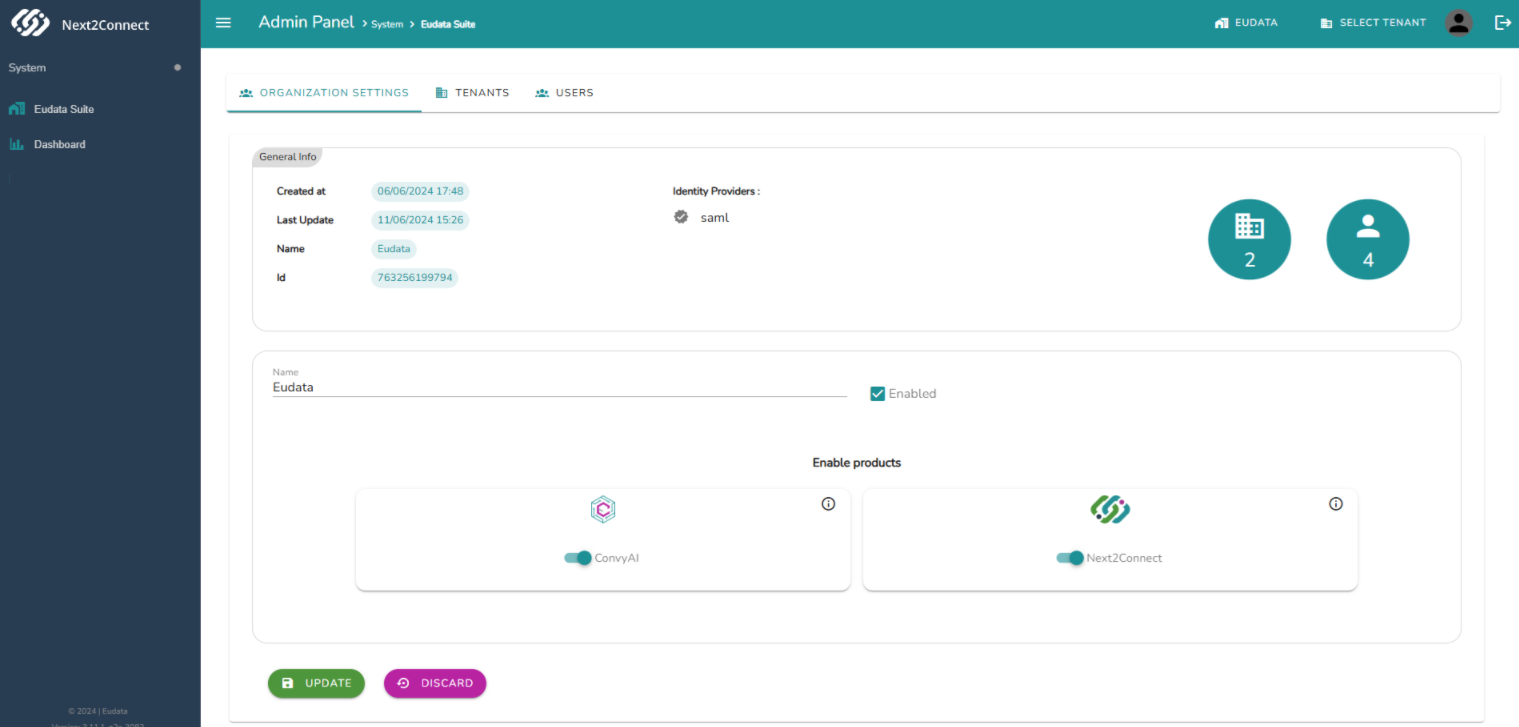
For information about enabling additional products, contact sales@eudata.com.
Tenants
The Tenants tab lists all configured tenants within the organization.
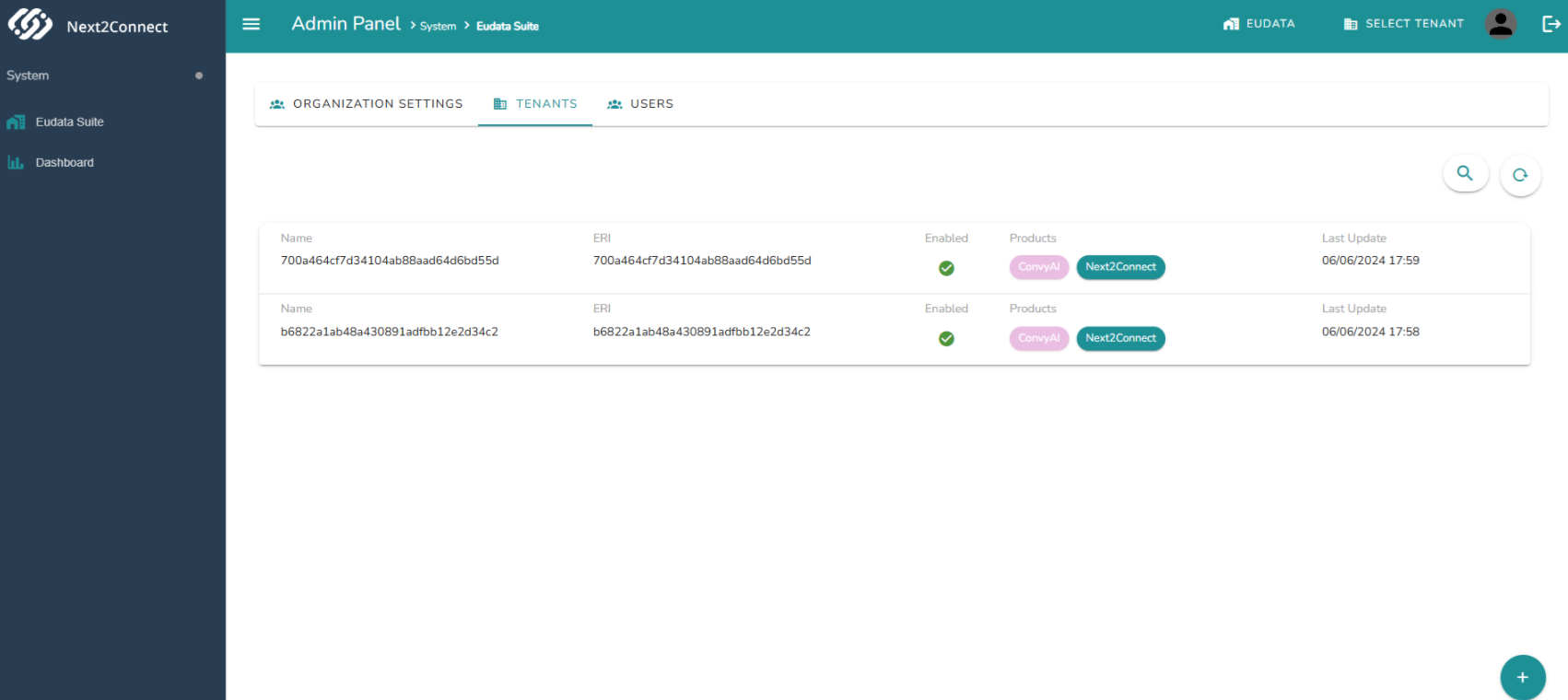
Expand a tenant row to see its full details and the products enabled for it.
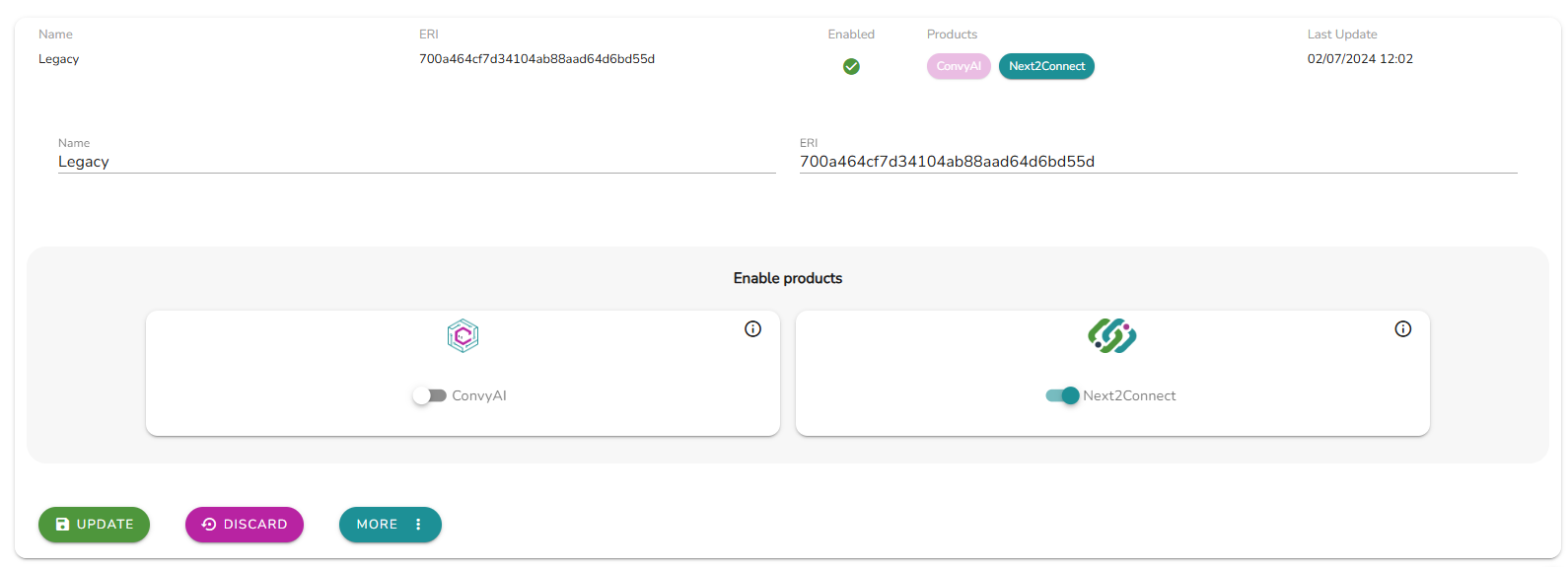
Click More to access additional actions: Manage Tenant opens the tenant configuration environment, Disable Tenant deactivates it.

Create Tenant
Only Organization Owner users can create new tenants. Click the + button (bottom right) to open the creation dialog.
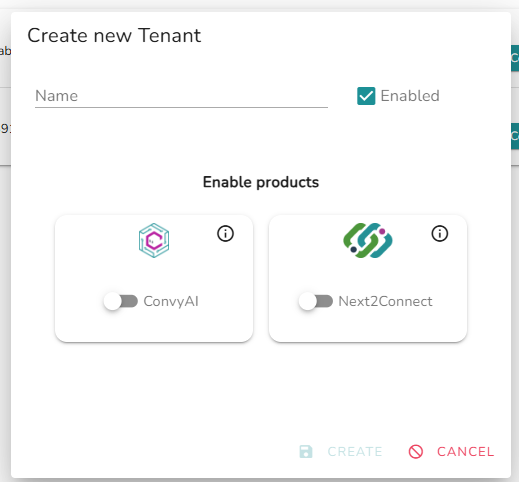
Set the tenant name, select the products to enable, and click Create. The panel then opens the three-step configuration wizard.
Step 1 - Tenant details
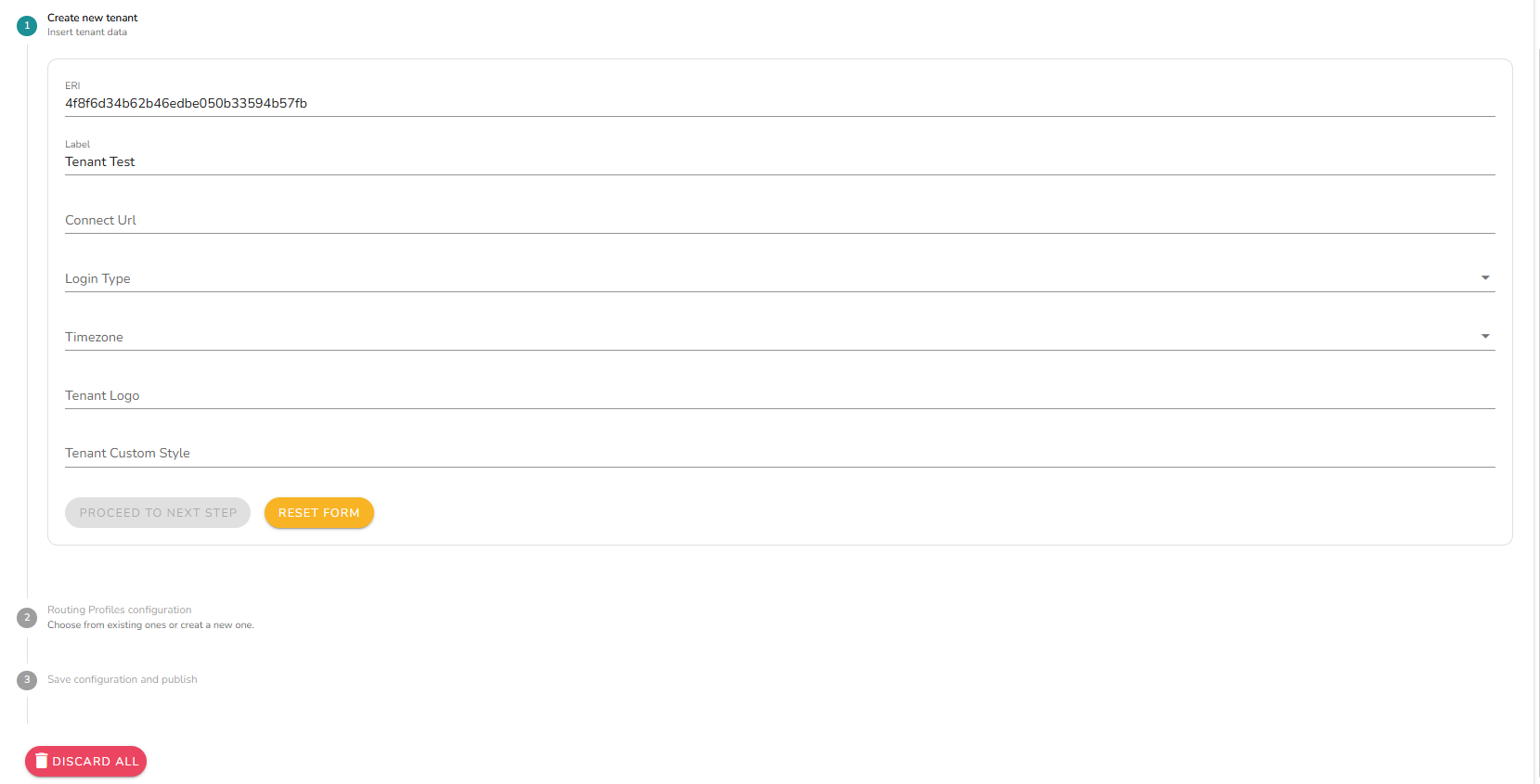
Fill in the required fields (Connect URL is mandatory) and click Proceed to Next Step.
Step 2 - Routing Profiles configuration
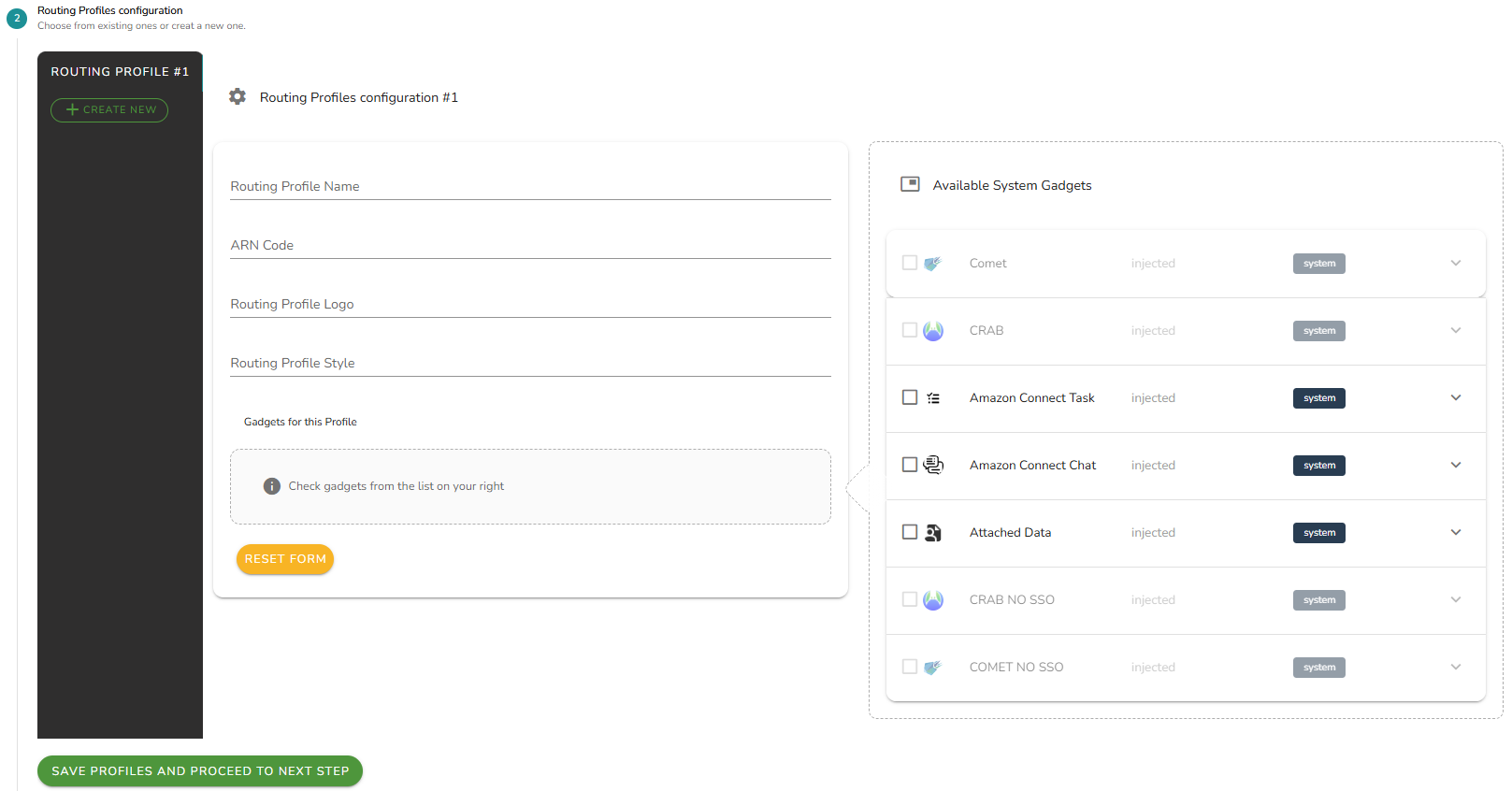
Configure at least one routing profile (see Routing Profiles for field details), then click Save Profiles and Proceed to Next Step.
Step 3 - Save and Publish
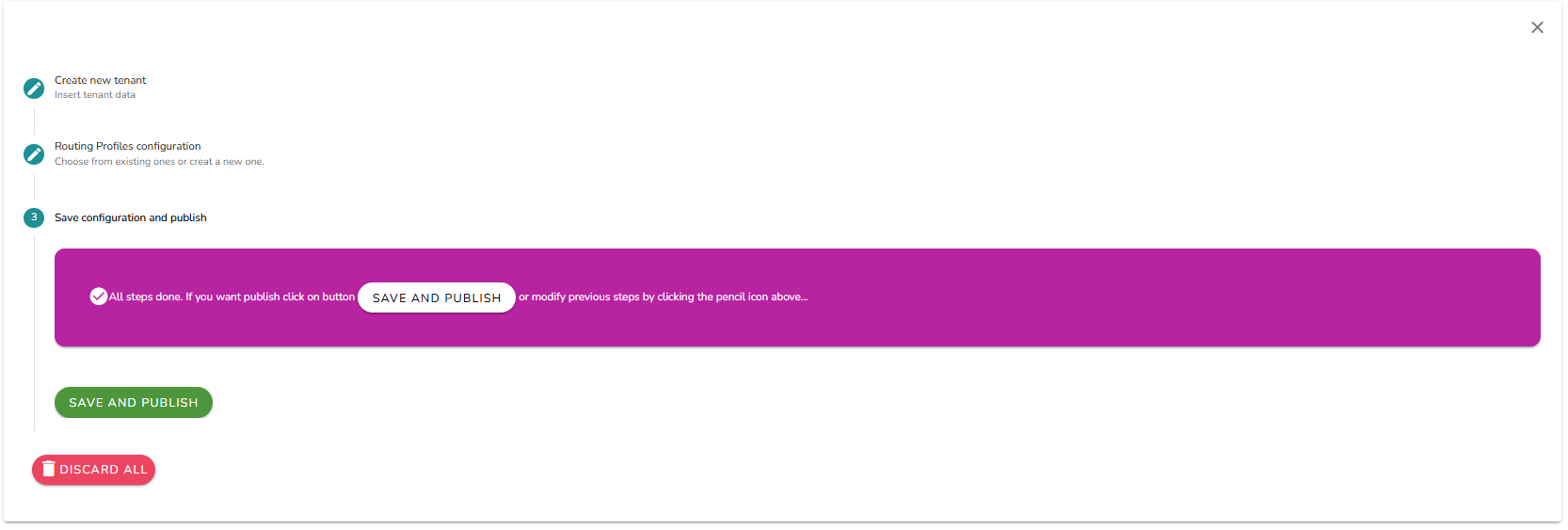
Once all required fields in both previous steps are complete, click Save and Publish to activate the tenant.
Users
The Users tab lists all user accounts within the organization.
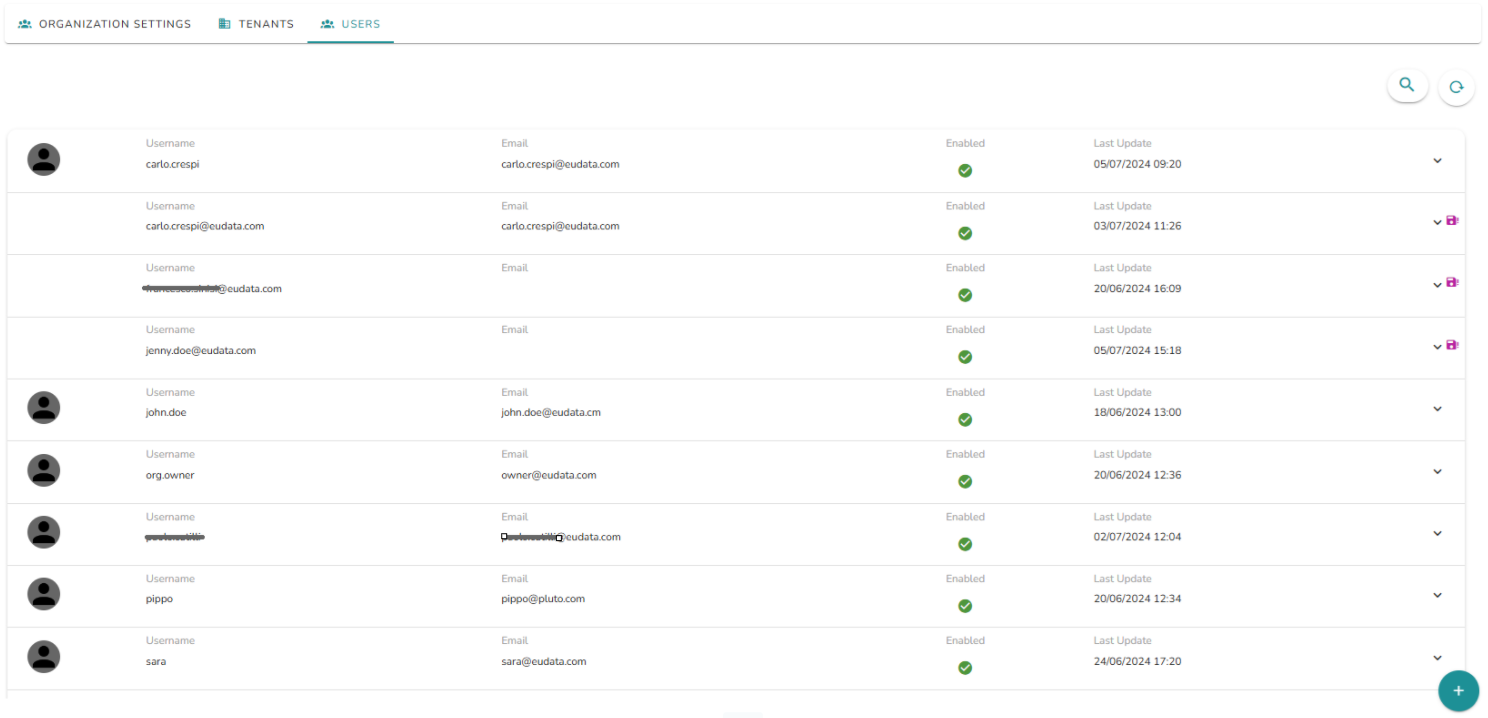
Click + (bottom right) to create a new user. Fill in the required fields:
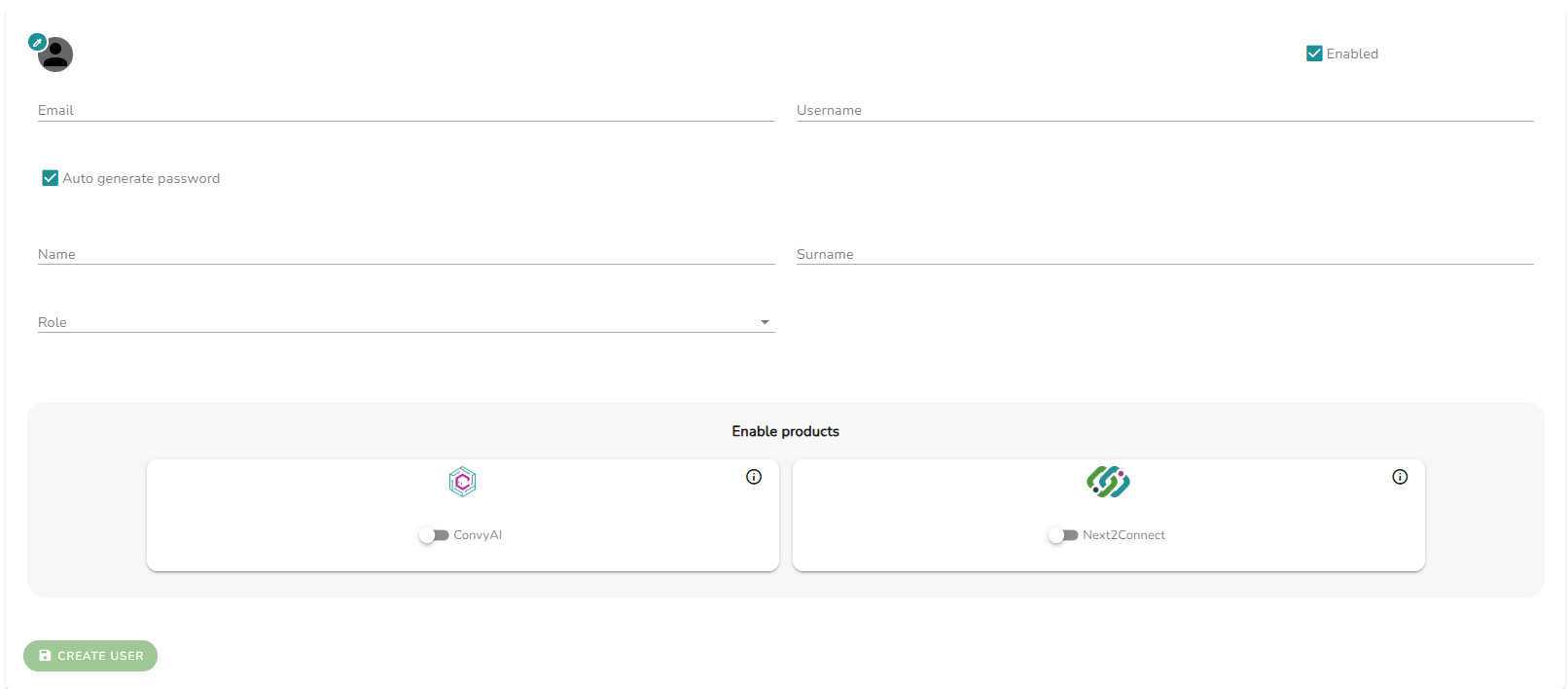
The Role field defines the user's administrative permissions:

| Role | Permissions |
|---|---|
| Organization Owner | Full authority over the organization: creates and configures users, tenants, and organization settings |
| User | Can configure tenants and manage users (create, modify, delete) |
| Legacy User | No administrative powers; full access to product features only. Used for Amazon Connect native credential users (migrating from v2.x) |
After selecting the role, assign the relevant tenants and enable the products for this user, then click Create User.
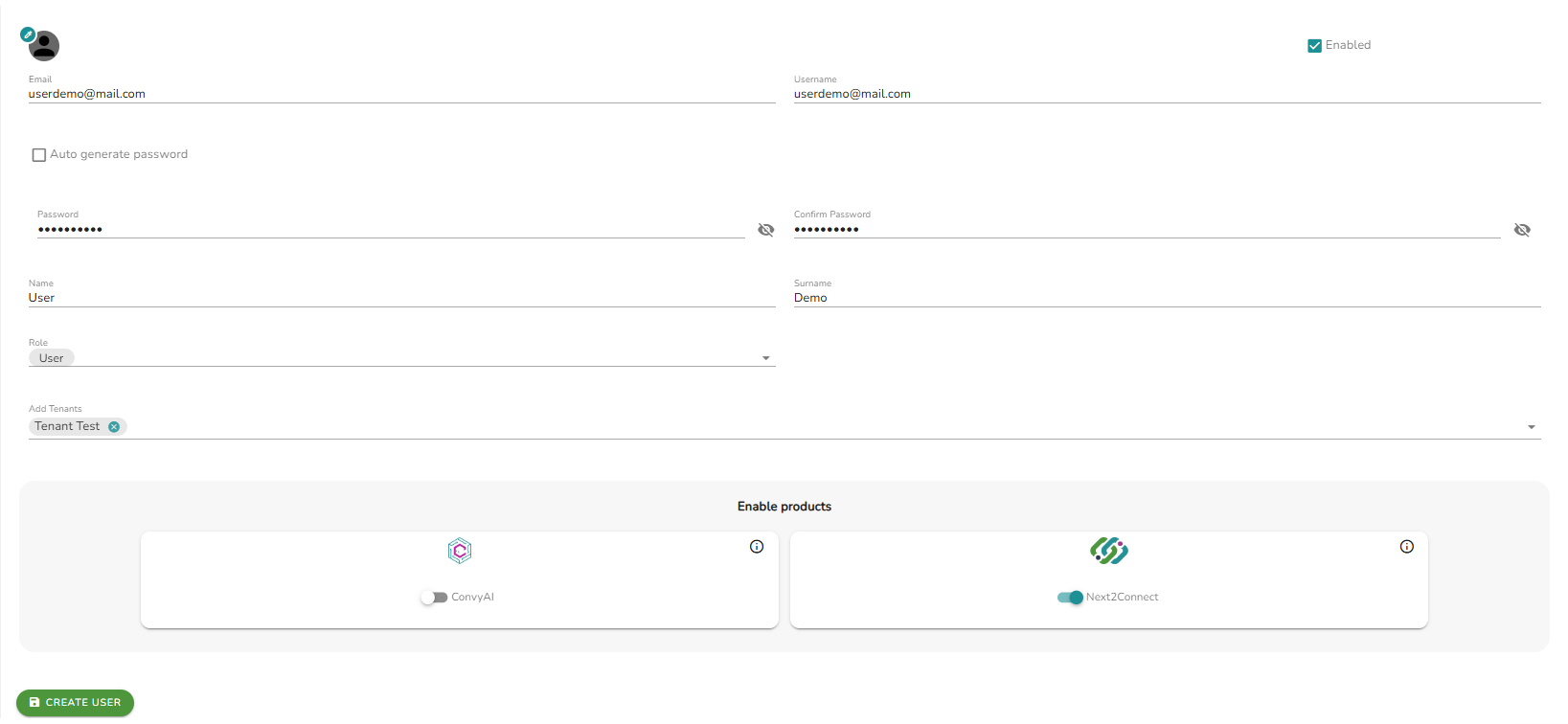
Once the user is created and Next2Connect is enabled, configure the user type for each panel independently:
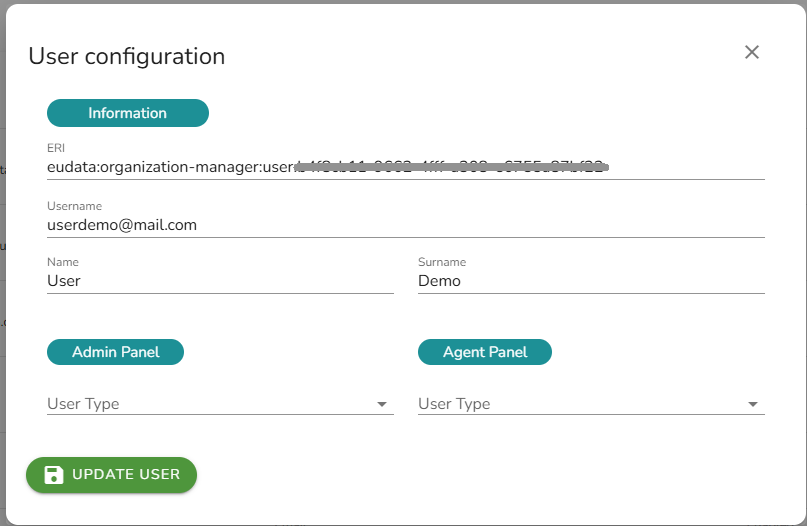
Admin Panel user types:

- Superadmin - can manage all tenant configuration aspects.
- User - view-only access to the administration panel.
Agent Panel user types:

- Supervisor - can log in to the agent desktop with supervisory capabilities.
- Agent - standard agent login to the agent desktop.
System Dashboard
The System Dashboard provides a real-time view of daily consumptions across all tenants and the number of currently active agents, grouped by tenant.
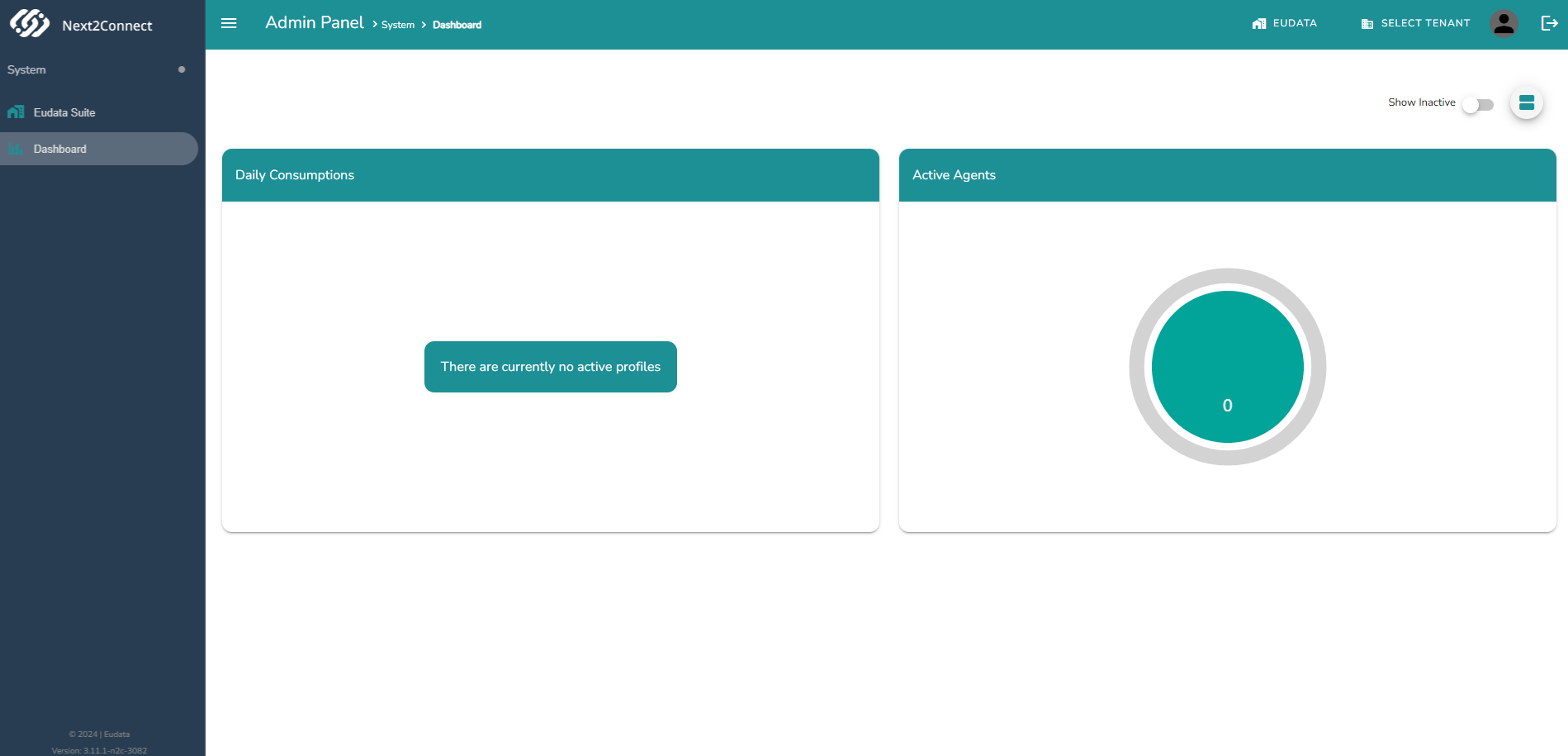
For a more granular breakdown per routing profile, use the Tenant Dashboard.